


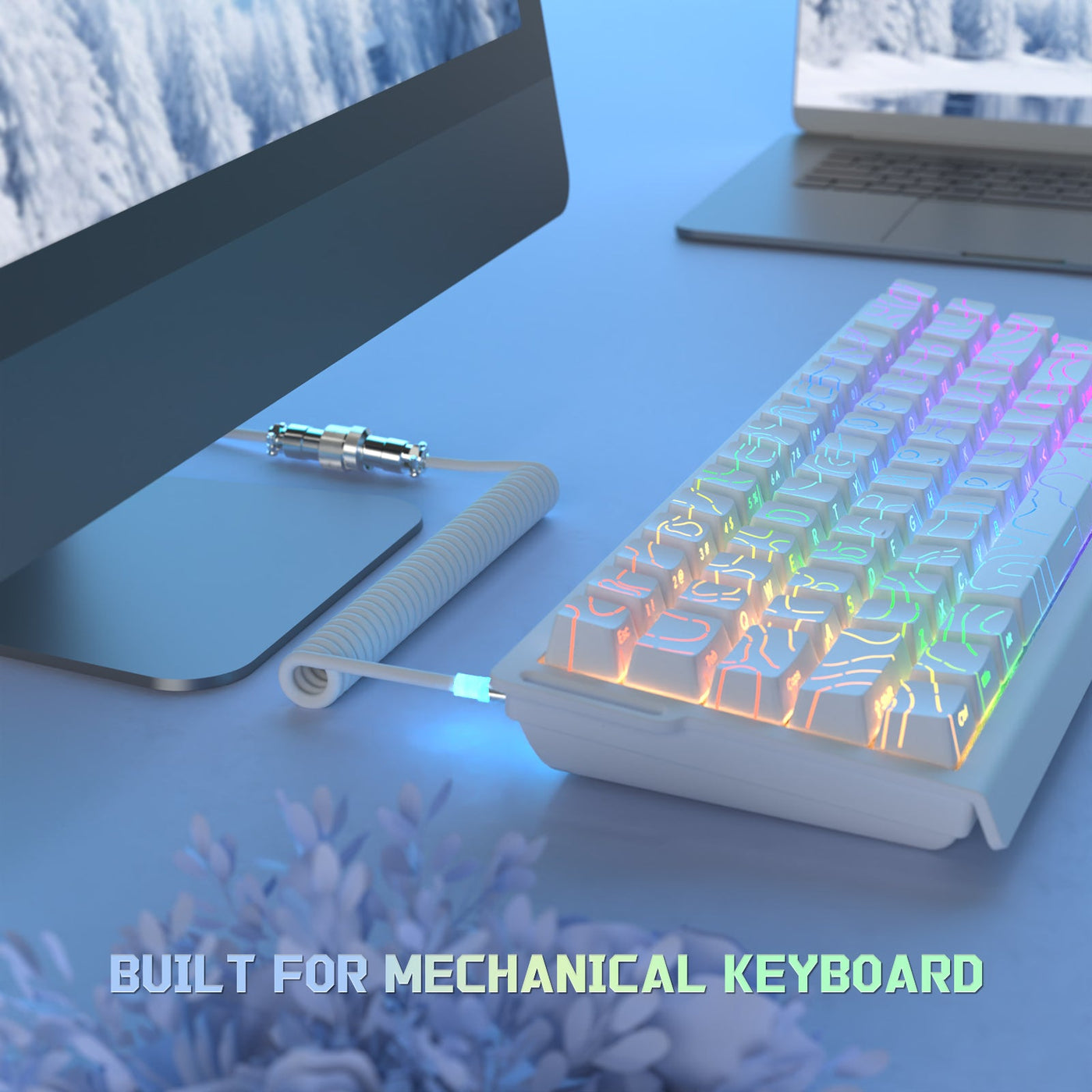
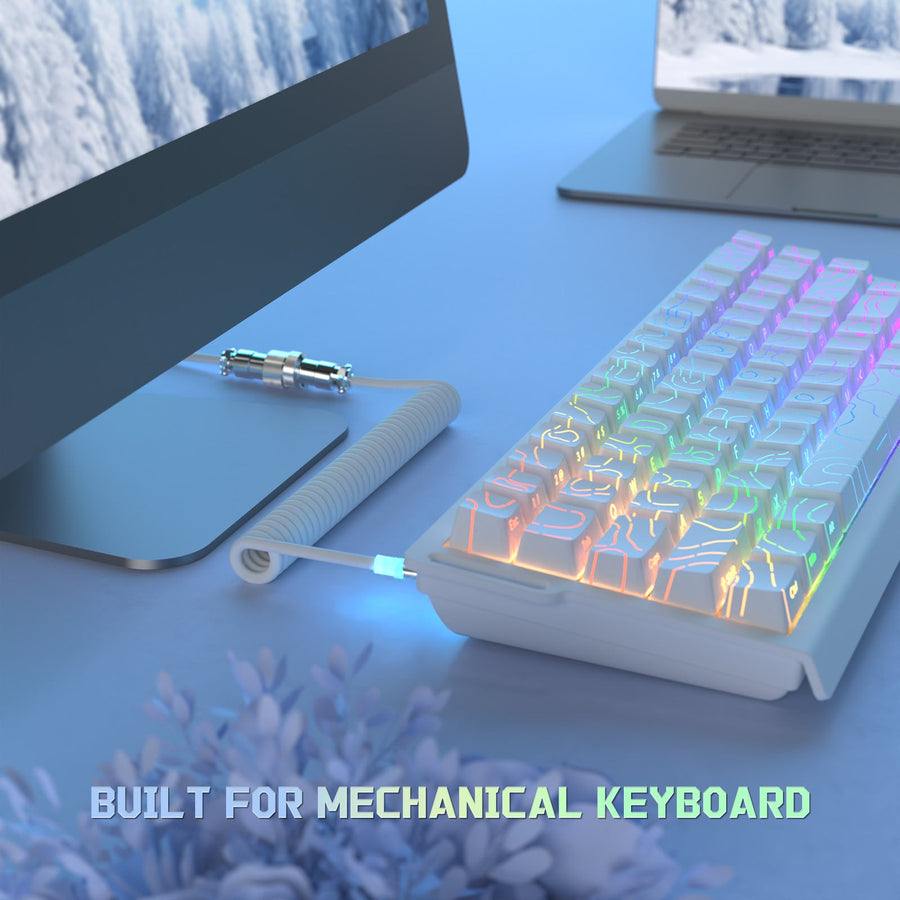
A coiled keyboard cable mainly changes the physical side of your desk: how much slack you can gather, how far the keyboard can reach, how the connector sits under tension, and how the whole setup looks. It does not automatically make a keyboard faster. Whether performance changes at all depends on the cable's actual function, not its shape. Before buying, check two separate things: how the coil fits your desk route, and whether the cable's connector, data, and power specs match your keyboard. This guide walks through both, then helps you match a cable to your setup.

Do Coiled Keyboard Cables Affect Performance?
No. A coiled cable does not raise your keyboard's polling rate or lower its input latency; performance depends on the keyboard's own controller and firmware and on whether the cable meets the connection's basic timing and power requirements.
What the Coil Does Not Change
Coiling a cable only changes its physical shape, not the electronics inside the keyboard. Polling rate is set inside the keyboard's controller, not by the wire connecting it to your PC. A peer-reviewed comparison of latency across dozens of USB input devices found that input latency varies by device and polling behavior, with forced 1000 Hz polling improving latency for some devices but not others. That result ties performance to the device and its firmware, not to whether the connecting cable is coiled or straight.
What Compatibility Still Affects
A cable's signal still has to travel from the host to the keyboard within an allowed window. USB-IF documentation on host-to-device timing shows that signal travel is measured in nanoseconds between transceivers, connectors, cables, and any hubs in between, and that an excessive total path can cause the connection to error out. A coiled cable is effectively longer once stretched than its resting length suggests, which is why total length and build quality matter more than shape alone. Separately, USB-C cable, data, and Power Delivery capabilities are treated as distinct compliance areas, so a USB-C plug alone does not confirm the data or power function your keyboard needs. Verify those requirements in the keyboard manual or product listing before buying.
What Changes in a Real Desk Setup?
A coiled cable changes three things at your desk: how much slack you can gather, how far you can move the keyboard, and how much tension sits at the connector. The right answer depends on your actual route, not on appearance alone.
Fixed Desk Route
If your keyboard stays in one spot near your PC or a fixed anchor point, a coiled cable can gather the slack into one compact, visible loop instead of a loose cable running across the desk. This is where a coil earns its keep: it turns a floppy cable into a defined, intentional-looking path. Even in a fixed layout, route the cable so the coil is not stretched near its limit and the keyboard-side connector is not carrying constant pull. A relaxed coil at rest fits better than one holding tension all day.
Long or Frequently Moved Route
If you slide your keyboard back for controller use, share the desk, or move it during cleaning, a straight cable is usually easier to live with. It has no preferred shape, so it does not resist being pushed aside or pulled toward you. A coiled cable can still work here, but only if its usable stretch comfortably covers the farthest point you move the keyboard to. If you reposition often and the coil is already near full stretch at the normal position, you will feel it pulling back every time.
Bend Near the Keyboard
Wherever the cable bends close to the keyboard, keep enough slack that the connector is not taking the strain. A tight bend right at the plug puts repeated stress on the connector and the port, whether the cable is coiled or straight. No cable shape carries a universal rating for how much bending it tolerates, so treat this as a routing habit rather than a spec to shop for: leave a small loop or curve before the connector instead of pulling the cable straight into it.
Coiled vs. Straight: Which Fits Your Desk?
Use the table to choose based on route freedom first, then confirm that either cable form meets the keyboard's connection requirements.
| Desk scenario | Coiled cable | Straight cable |
|---|---|---|
| Fixed, compact route | Gathers slack into a neat, visible loop; choose it when the keyboard stays near the cable anchor | Works when a loop is not needed, but leaves more loose length to tuck away or clip down |
| Long route to the PC | Choose it only when its usable stretch reaches the PC without tension | Choose it when continuous reach matters more than gathered slack |
| Frequent keyboard movement | Choose it only if the coil still reaches the farthest position without pulling back | Choose it for freer movement along a changing route |
| Performance expectation | The coil does not set polling or lower latency; choose it for routing, not speed. Input-device research links measured latency to device and polling behavior | It does not inherently improve polling or latency either; choose it when simpler routing helps isolate a connection issue |
| Connector and function fit | Choose it only when the keyboard-side connector, any aviation arrangement, host plug, data function, and power need match | Choose it when the keyboard documentation calls for a simpler direct connection and no aviation or coil arrangement is needed |
If your setup is the fixed, compact case, a coiled cable is the more deliberate choice. If your keyboard travels or the route keeps changing, start with a straight cable and treat a coil as an appearance choice only after reach and movement are settled. Neither form bypasses the compatibility check.
Check Compatibility Before You Buy
Before ordering any coiled cable, confirm five things about your keyboard and the cable, in this order.
- Keyboard-side connector. Check whether your keyboard uses a standard USB-C port or a detachable plug with its own connector assembly, such as an aviation-style plug. Match this exactly; a cable that only looks similar will not seat correctly.
- Aviation or specialty connector arrangement (if present). If your keyboard uses a detachable aviation connector, confirm the pin count and connector style match the cable, not just the outer housing shape.
- Host-side plug. Confirm whether your computer's port is USB-C or USB-A, and whether you need a built-in adapter.
- Data and power function. USB-C's connector, cable, and Power Delivery compliance areas are documented separately, so a USB-C shape alone does not guarantee your keyboard's required data mode or power delivery is supported. Check your keyboard's own listing or manual for the data and power it needs, then match the cable to that, not to the plug shape.
- Total route length and usable stretch. Measure the actual distance from the keyboard's normal position to your PC or cable anchor, then compare it to the cable's stated length and maximum stretch, not just its coiled resting length.
A cable passes this check when both ends match, the required data and power function is present, and the measured route fits inside the cable's usable length without pulling tight.
Choose a Cable for Your Setup
Once you know your route and your keyboard's connector requirements, matching a cable takes four steps.
- Inspect your keyboard's port and any detachable connector to confirm the exact connector type and pin arrangement.
- Measure your desk route with the keyboard in its normal position, including the farthest point you move it to.
- Match that measurement and connector to a cable's stated function, length, and stretch.
- Choose a configuration that fits, or a straight cable if your setup calls for maximum reach and movement instead.
For a keyboard with a standard detachable Type-C connection, our C04-C coiled cable uses a double-sleeved Type-C cable with a detachable 5-pin aviator connector and a USB-to-USB-C adapter, so it can adapt to a USB-A host if needed. For the listed magnetic-keyboard configuration built around a 4-pin aviation plug, our C08 aviation cable is built for that arrangement, with a stated 63.0 to 63.8 inch length and an 86.6 inch maximum stretch, dual Type-C ports, and a pure copper core rated for 8K transmission. Confirm your keyboard's own connector and data requirements against these specs first. If they do not match, a straight cable in the correct connector type is the safer buy.
For a fixed desk route, choose the coiled option only after the connector, function, and usable reach all pass. For a moving or changing route, choose straight instead when that gives you the reach and flexibility you need.
FAQ
Do coiled cables improve latency?
No. A coil does not change your keyboard's polling rate or measured latency; those depend on the keyboard's own controller and firmware. Independent testing of USB-connected input devices found that latency varies by device and polling behavior, not cable shape, so judge a coiled cable on desk fit rather than a speed claim.
Are all coiled cables compatible with every mechanical keyboard?
No. Keyboards use different connectors, from a standard USB-C port to a detachable aviation plug with its own pin count. A USB-IF overview of USB-C capabilities shows that a USB-C shape alone does not guarantee the same data or power capability across cables, so match the keyboard-side connector, host plug, and required data and power function before buying.
How long should a coiled cable be for a standard desk?
There is no standard length that fits every desk. Measure the route from your keyboard's normal position to your computer or cable anchor, including any spot you move it to, then choose a cable whose stated length and maximum stretch cover that distance without pulling tight.
When should I choose a straight keyboard cable instead?
Choose a straight cable when you move the keyboard often, need a long or changing route, or want the simplest possible cable while troubleshooting a connection problem. A straight cable has no preferred shape, so it does not add tension or resistance as the route changes.