


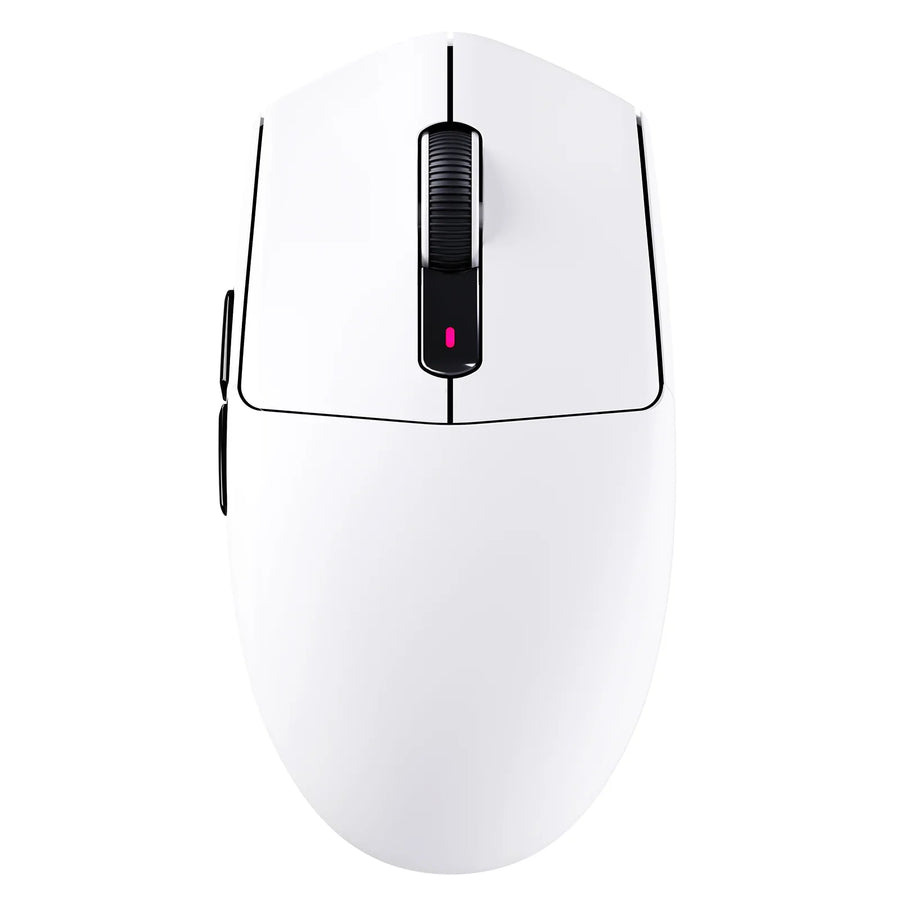
A web driver is the temporary interface you use to change settings. Onboard memory is the hardware layer that decides whether those settings stick after you close that tool. When an affordable wireless gaming mouse documents both a web configurator and onboard storage, you can adjust DPI, debounce time, or keybinds right in the browser, save the result to the device, then close the tab and skip desktop software entirely.

Start by identifying your exact model and checking its published control list. Not every affordable wireless gaming mouse exposes debounce time or supports onboard profiles, so treat the maker's product page or manual as the source of truth before connecting anything. The shortest safe path is: confirm support, open the official web tool, grant permission for that one device, set your values, save if the interface offers hardware storage, close the tool, then test.
The Short Answer: Use the Web Tool to Configure, Onboard Memory to Keep Settings
A web-based configurator handles the change; onboard memory decides if the change survives after you're done. A desktop utility only becomes necessary when the model's web route or hardware storage doesn't cover the control you want.
Follow this order for any new setup: verify the exact model supports the setting you want, open the manufacturer's official web tool, grant device permission, adjust the value, save it to onboard memory if that option exists, close the tool, and test the result before you consider the job finished. Skipping the test step is the most common way readers end up reinstalling software they thought they no longer needed.
Web Driver vs Desktop Software vs Onboard Memory
Web configuration, desktop software, and onboard memory solve three different problems. Confusing them is the main reason a setting seems to disappear after closing a tab.
| Layer | Role | After you close it | Best fit |
|---|---|---|---|
| Web-based configuration | Browser page that talks to the device once you grant permission | Setting stays only if it was saved to onboard memory; otherwise it may not carry over | One-time adjustments on a documented model |
| Desktop software | Installed utility that runs in the background | Some controls need the utility active; others may also write to hardware | Ongoing profile management or software-only features |
| Onboard memory | Storage inside the device itself | Documented settings can remain without any tool open | Any setting you want to keep without running software |
A browser configurator only works when your browser supports the connection type and you actively trigger it. Chrome and similar browsers require explicit device permission through a picker before a page can talk to your mouse at all. That requirement is why a web tool can't quietly reconfigure a peripheral in the background the way an installed process sometimes can: you have to start the connection yourself, every time.
Check Compatibility Before You Connect a Peripheral
Before you connect any peripheral to a browser-based driver, confirm the exact model, a supported browser, the manufacturer's own domain, and which settings that model actually documents. Skipping this check is how readers end up granting access to the wrong tool.
- Exact model and connection mode (2.4GHz dongle, Bluetooth, or wired) match what the configurator expects
- Your browser supports the connection type the tool needs, since not every browser exposes the same device APIs
- The page requesting access is the manufacturer's own configuration domain, not a mirror or third-party download site
- The device picker that appears names your specific model, not a generic or unrelated entry
- The setting you want, whether DPI, debounce time, or a keybind, appears in that model's published control list
Do not grant device access or run a downloaded executable if the site isn't the maker's own configuration domain or the picker doesn't name your exact model. That single check prevents most avoidable mistakes in this workflow.
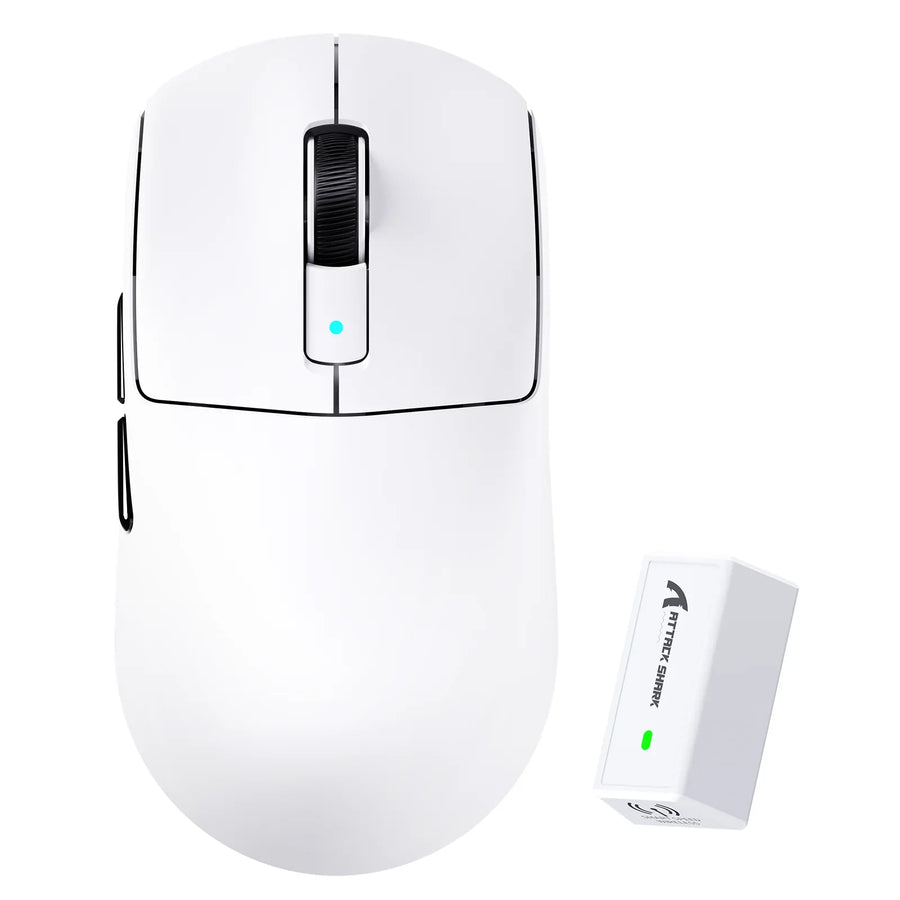
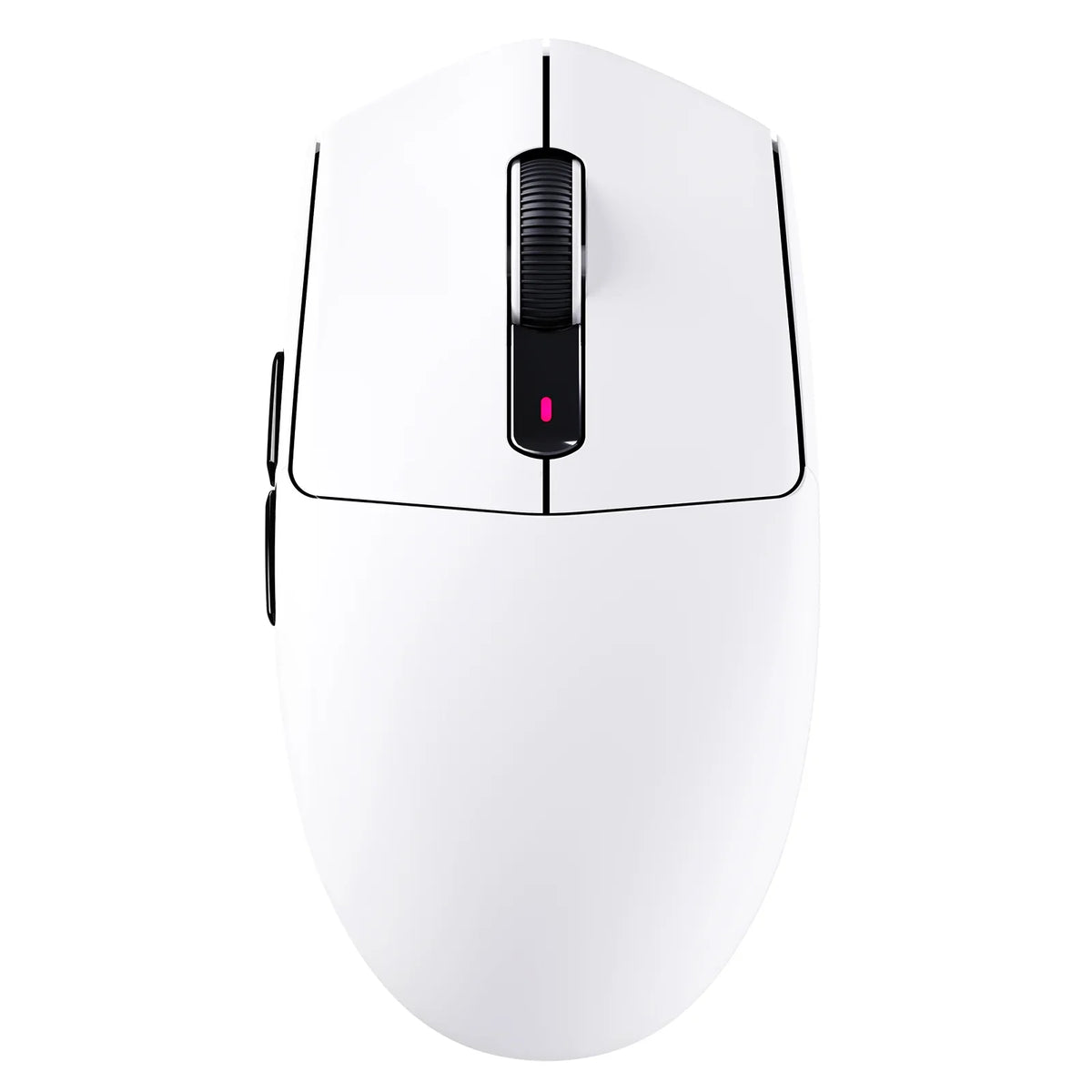
As one documented example, our X8 Series wireless mouse lists both a web configurator and PC software for the X8 Ultra variant. That alone doesn't confirm onboard persistence or debounce support for every X8 variant, so check the specific model page before assuming a setting carries over to your unit.
If your model calls for a firmware or software download instead of a browser tool, get it from our official driver download page rather than a search result. Once you're finished with a browser session, you can also remove a site's device access in Chrome so the permission doesn't linger after you're done configuring.
Granting HID access is a controlled capability, not a blanket safety guarantee. A trusted page can read device information and reprogram it once you approve the connection, which is exactly why the domain and model checks above come first.
Configure DPI, Debounce Time, and Keybinds Without Installing a Desktop App
Work through one setting at a time, using only the controls your model's documentation confirms, rather than assuming every gaming mouse exposes the same options.
- Identify your exact model and open its documented control list from the manufacturer's product page or manual, so you know which settings actually exist before you start.
- Connect through the official web configurator, using the model-specific device picker to grant permission for that one mouse only.
- Set DPI first by choosing a documented level or stage in the interface, then confirm the active profile shown on screen updates to match your choice.
- Adjust debounce time only if the interface lists it. Debounce time, the short delay that filters out accidental double-clicks, isn't available on every mouse, so skip this step rather than hunting for an unofficial patch if you don't see the control.
- Remap keybinds only for controls the documentation confirms are hardware-stored. Some remaps are simple onboard swaps, while others are software-only macros that need an active utility to function.
- Save to a named onboard profile if the tool explicitly offers that destination. If it doesn't, treat the change as temporary until you run the persistence test below.
- Close the configurator when you're done, and remove the browser's device permission for that site if you don't plan to reconfigure again soon.
Test Whether Your Settings Persist After You Close the Tool
Closing a browser tab isn't proof that a setting was saved to hardware. The real test is reconnecting after the tool is closed, then checking each setting on its own.
- Record the exact value you set for DPI, debounce time, or a keybind before closing anything.
- Close the web configurator completely, and remove the site's device permission if you're done testing for now.
- Reconnect the mouse using its normal documented connection mode, whether that's a wireless dongle or Bluetooth.
- Check each setting independently. A correct DPI value doesn't guarantee the keybind or debounce change also survived.
- Treat a match as a pass and a reset value as a fail. A fail means that control depends on the desktop utility or wasn't actually written to a stored profile.
When Desktop Software Is Still Necessary
Stick with the web route when your model's documented controls cover what you need and the persistence test above comes back with a pass. There's no reason to keep a utility running for a setting that's already stored on the device.
Keep desktop software when a control isn't available in the web tool, isn't documented as hardware-stored, or requires ongoing profile switching, like changing DPI stages automatically per game. In those cases the software isn't unnecessary bloat, it's the only way the feature works. The realistic goal isn't eliminating every install; it's avoiding software your device doesn't actually need once your settings are configured. If you're still weighing whether a budget wireless gaming mouse can cover your needs at all, our guide to help you compare cheap and premium mice can help before you commit to a setup.
FAQs
Is it safe to use a web-based gaming mouse driver?
It's as safe as the site you connect to. Use only the manufacturer's official configuration domain, confirm the device picker names your exact model before approving the connection, and remove that site's access once you're finished. Browser permission is controlled access, not an unconditional safety guarantee, so the domain check matters more than the fact that the tool runs in a browser.
Will my mouse settings still work after I close the web driver?
Only if the setting was saved to documented onboard memory. Closing the tab by itself doesn't prove anything either way. Reconnect the mouse afterward and check each setting individually. If a value resets, that control likely depends on active software rather than hardware storage, and you'll need to save it differently or keep the utility running.
Can I change debounce time without installing software?
Only if your exact model's official control list includes a debounce setting through its web configurator. Debounce time isn't a universal feature, and some mice don't expose it at all. If it's missing from the documented controls, treat it as unsupported rather than searching for an unofficial tool that claims to unlock it.
What should I do if my settings do not persist?
Reconnect using the model's documented connection mode and check whether the value was actually saved to a selected onboard profile in the configurator. Retest each setting on its own rather than assuming one success covers everything. If a specific control still resets, install the manufacturer's desktop software only for that one feature rather than for the whole setup.