


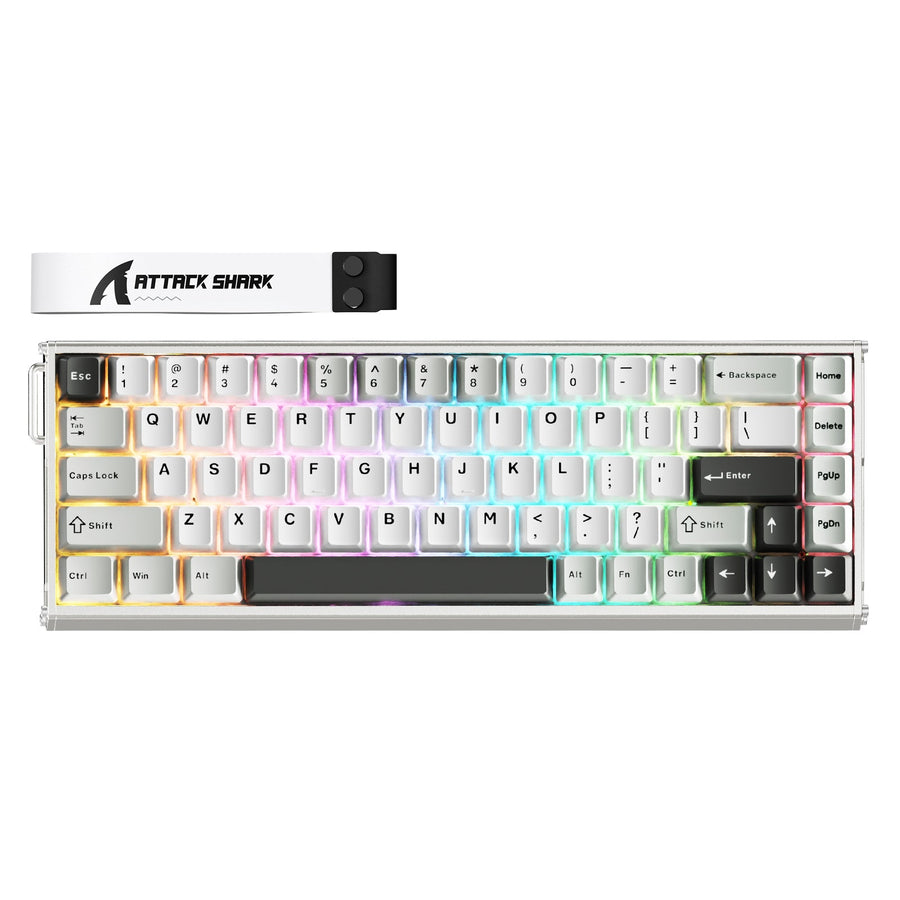
Start with a direct, supported keyboard connection and test ordinary typing before reinstalling gaming keyboard software. If Windows cannot accept keystrokes, stay with the connection or Windows device branch. If typing works but the utility shows no device, move to the exact model's software, permissions, and competing utility checks. This approach covers fresh setup failures, reconnect problems, and issues that appear after an update without treating one symptom as a final diagnosis.

Start With a Clean Keyboard Connection
The first question is whether the keyboard works as a normal Windows input device. Connect it through the model's supported data path, bypassing a hub, dock, or adapter when possible, and type in a basic text field. Microsoft's keyboard troubleshooting guidance supports starting with the ordinary input problem before moving to application-specific checks.
Use this short path:

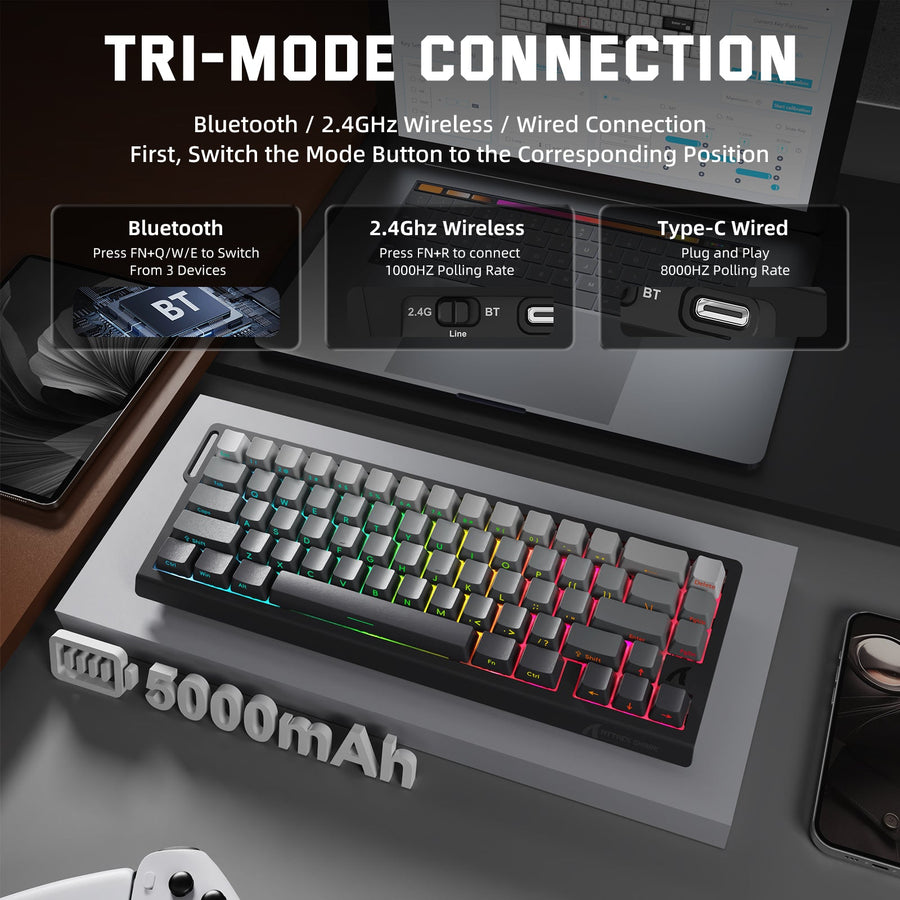
- Connect the keyboard directly to the PC with its intended data cable or supported receiver. Make sure a wireless model has power, then follow its manual's instructions for receiver, Bluetooth, or wired mode.
- Test ordinary keystrokes in a Windows text field. If typing fails, stay with the connection and Windows device branch instead of repeatedly reinstalling the utility.
- If appropriate for the model, try another suitable USB port and the intended data cable. A single failed port or cable test does not prove a hardware defect.
- If typing works but the control app is empty, continue with the software and access checks below.
For wireless-capable keyboards, compare the documented wireless path with the supported wired path only when the model manual provides both. For model-specific connection options, use our HE keyboard connectivity options collection as a starting point. Stop handling the connector if it feels damaged or obstructed and use the support path instead.
Match Gaming Keyboard Software to the Keyboard and Windows Setup
The exact keyboard model, its official utility, and the Windows support listed for that model determine the software branch. Do not choose a similarly named peripheral app or reinstall a package before identifying the model from the keyboard, packaging, order record, or documentation.
| Check | What to verify | Next branch |
|---|---|---|
| Exact model | The complete model name and revision, if shown | Use that identity for every download or support search |
| Supported utility | The official software package named for that model | If the installed app differs, replace it only through the model's documented path |
| Windows support | The operating system versions listed in the model's official instructions | If your setup is outside the stated support, use support rather than improvising a workaround |
| Failure history | Fresh setup, reconnect, or failure after a Windows, software, or firmware change | Preserve the timing because it helps separate setup friction from a regression |
If ordinary typing works while the correct utility remains empty, continue with the access and conflict checks. If ordinary typing fails, return to the connection branch. The phrase gaming keyboard software is not detecting the keyboard describes a symptom, not proof that the utility or keyboard is defective.
Test Permissions and Competing Peripheral Utilities Separately
Test one possible blocker at a time. If the utility reports an access or account restriction, perform only the narrow Windows access step named in the utility's documentation. Keep Windows Security protections enabled and avoid blanket exclusions, registry changes, or broad account changes.
Run One Documented Permission Test
- Close the supported utility completely.
- Apply only the documented, least-privilege access step relevant to the message you received. Windows file system access guidance provides background on access controls, but it is not proof of a universal USB or keyboard permission requirement. Keep the setting model-specific.
- Reopen the utility normally and record whether detection changes. If it does not, return to the normal launch method and move to the competing utility test.
Isolate Other Device Utilities
Close other device utilities before testing the supported keyboard app alone:
- Keyboard utilities, including macro and remapping tools
- Mouse, RGB, and lighting utilities
- Other hardware-control or peripheral-management apps
Installed utilities are a possible source of interference, not a diagnosis. If detection returns, restore the other programs one at a time and test after each change so the result identifies the likely conflict.
If closing utilities does not isolate the problem, a documented Windows clean-boot procedure can provide a temporary startup-interference test. Record any startup changes and restore normal startup settings after the controlled test. A clean boot is an isolation step, not a reason to permanently disable security or startup protections.
Use the Least-Disruptive Documented Recovery Step
Recovery should move from reversible actions to model-specific changes. Before altering the setup, preserve the model, connection mode, visible software and Windows versions, profiles, error text, and recent-change history.
- Relaunch the supported utility and restart Windows, then retest the same connection and app.
- If detection still fails, follow the exact model's official instructions for reinstalling its supported utility. Avoid removing several programs at once because that erases useful evidence about which change mattered.
- Use Windows Device Manager only when the documented recovery path calls for a driver action. Microsoft's Device Manager instructions provide a Windows route for updating or reinstalling a driver, but they do not establish that a generic driver reinstall will restore control-software detection.
- Stop before any unclear profile-destructive action, firmware flash, factory reset, registry edit, unsupported driver, or improvised firmware file. Use those steps only when the exact model's documentation clearly describes them and the required connection mode.
A keyboard driver not detecting a keyboard may tempt you to remove and replace drivers immediately. Treat that wording as a reason to identify which documented layer is failing, not as a universal instruction to remove a driver. If the supported low-impact path does not change detection, preserve the record and prepare the support handoff.
Know When to Contact Support
Contact the manufacturer's support channel when ordinary input still fails or when the keyboard remains missing after the documented connection, software, conflict, and recovery checks. The result pattern is useful evidence: utility-only failure points toward the software, access, or conflict branch, while failure across basic input and documented connection tests makes a cable, port, receiver, connection, or keyboard issue more plausible. Neither pattern proves a hardware defect.
Send one concise bundle:
- Exact keyboard model and connection mode
- Windows version and the utility or firmware versions shown on screen
- Whether ordinary typing works
- The exact error text and screenshots, if available
- Whether the issue began during fresh setup, after reconnecting, or after a Windows, software, or firmware change
- Ports and intended data cables tested
- Whether the supported utility was tested alone
- The documented recovery steps already completed
This record helps support choose the next model-specific action without making you repeat low-value reinstalls. If you are still deciding whether this is a connection or software case, the ordinary-typing result is the most useful next fact to capture.
The safest path for gaming keyboard software troubleshooting is to establish ordinary input first, identify the exact model's supported utility, isolate access and background software, and use only documented recovery. If those checks fail, stop changing the setup and send support the evidence bundle rather than escalating to an improvised firmware or reset step.
FAQs
These answers separate ordinary input failure from utility-only detection problems and keep recovery within documented steps.
Why Is My Gaming Keyboard Software Not Detecting My Keyboard?
Start by separating ordinary typing from utility recognition. If Windows accepts keystrokes but the app remains empty, focus on the exact model's supported utility, any access message, and competing peripheral apps. If typing also fails, return to the direct connection and Windows device branch. These results narrow the next step but do not diagnose a failed component by themselves.
What Is the Safest First Step When Keyboard Software Says Device Not Found?
Connect the keyboard directly through its supported data path and test ordinary keystrokes before reinstalling anything. That result tells you whether to stay with connection and Windows checks or move to software and access checks. For wireless models, use the receiver, Bluetooth, power, or wired comparison described for that exact model.
How Can I Tell Whether Another Peripheral App Is Blocking Keyboard Detection?
Close other keyboard, mouse, RGB, macro, remapping, and hardware-control apps, then test the supported utility alone. If detection returns, restore the other apps one at a time. If it does not, a documented clean boot is a later temporary isolation test, followed by restoration of normal startup settings.
Should I Reinstall Keyboard Drivers When the Control Software Cannot Find the Device?
Not as the first response. Use Device Manager or reinstall the supported utility only when the exact model's documented recovery path calls for that action. A keyboard driver cannot find the keyboard message does not prove that generic driver removal will fix the control app.
When Should I Stop Troubleshooting and Contact Keyboard Support?
Stop after ordinary connection, exact-model software, isolated-utility, and documented recovery checks fail, or sooner if ordinary input is still unavailable and the connector or device appears damaged. Include whether typing works, what changed before the failure, your connection mode, versions, error text, tests, and completed steps. Support can then select the next model-specific action without relying on a guess.