


Match a gaming keyboard and mouse by starting with software tolerance, not color. Choose a single ecosystem when you want one control app and synchronized profiles, and choose mixed brands when each device wins independently on fit, connection, or price.
After that choice, verify software support, connection mode, physical fit, and performance settings for the exact models before you check whether finish and lighting line up.
Choose a shared ecosystem or mix brands by software tolerance
Before comparing any specific gaming keyboard and mice, decide how much separate software you are willing to run. That single decision shapes every choice that follows, from connection mode to lighting control.
Choose shared control when simplicity is the priority
- You want one control app instead of juggling settings across two brands.
- You plan to use synchronized profiles or lighting and are willing to confirm that your exact models support them.
- You prefer fewer firmware updates and configuration windows to manage.
Choose mixed brands when device fit matters more
- Each device already meets your platform, connection, control, and physical requirements on its own.
- You accept installing a separate utility for any proprietary feature you actually need.
- The keyboard and mouse you want solve different problems better than a matching pair from one brand would.
Matching brands is a shortcut for research, not proof that two products share software, a receiver, or lighting control. Treat it as a starting filter, then verify the details below.
Verify software and platform support for the exact models
Before you buy, separate what your operating system already handles from what requires extra software. This distinction determines whether a mixed-brand setup is genuinely simple or quietly adds friction.
Separate basic input from feature control
Keyboards and mice that follow supported HID standards do not need a vendor driver just to type and click; Windows documentation confirms that compliant HID devices work without one, while vendors optionally add filter drivers for extra features. Use the table below to see what each layer actually confirms.

| Check | What it establishes | Purchase consequence |
|---|---|---|
| Basic HID input | Typing and pointing work under a supported OS | Safe baseline for any mixed-brand pair |
| Optional vendor software | Remapping, macros, lighting, DPI, actuation, or firmware controls | Required only if you need that specific feature |
| Exact model and OS support | Whether the feature software runs on your system | Confirm before assuming it works |
Use the download page as a real compatibility check
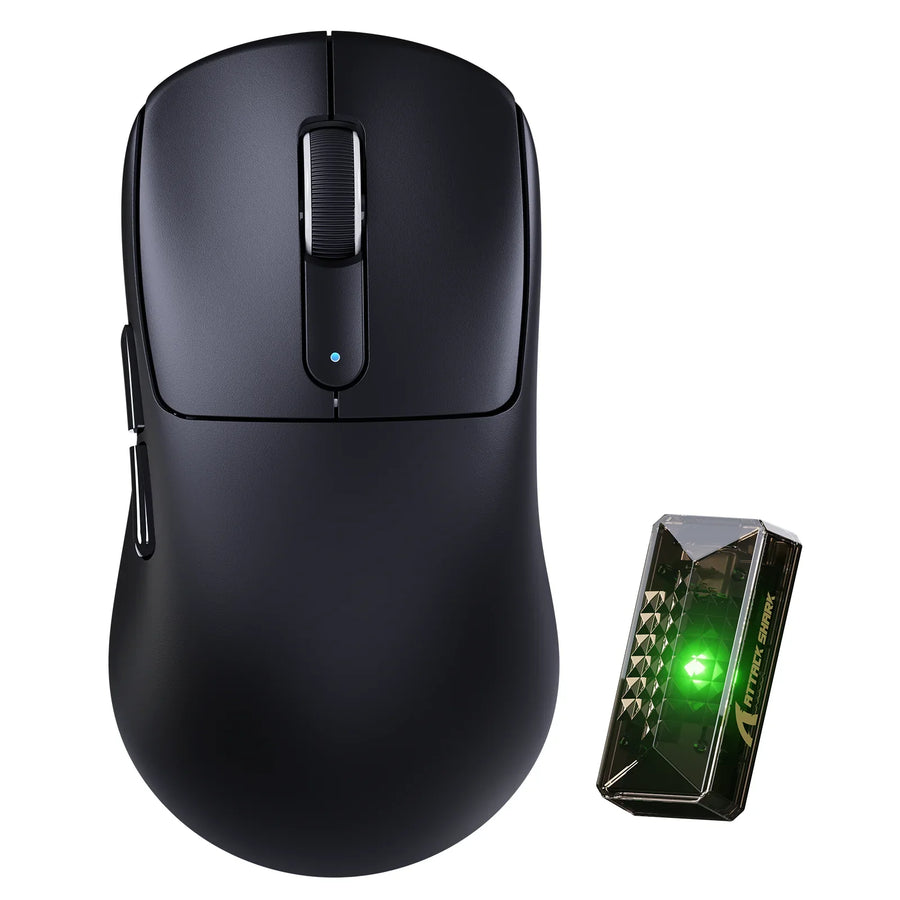
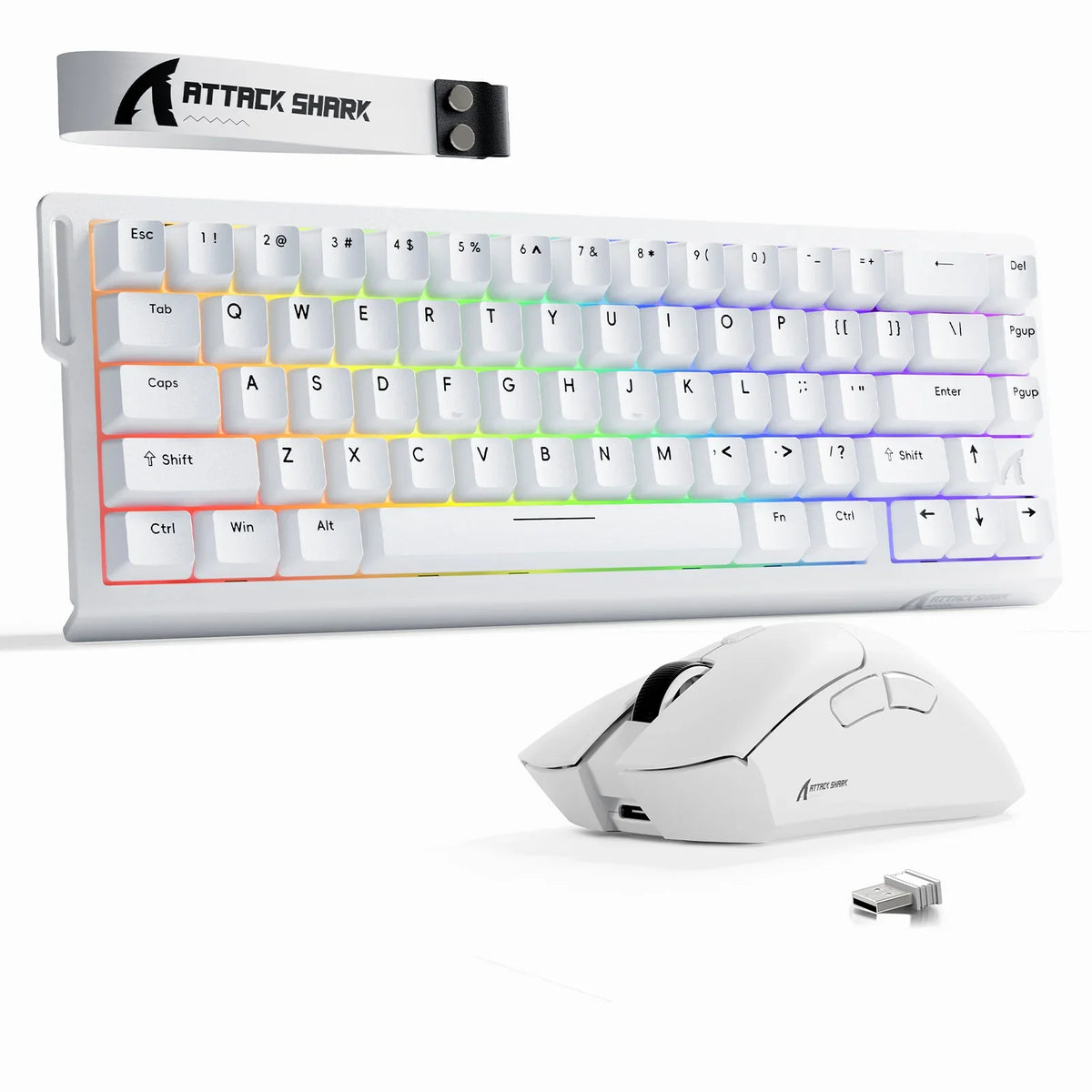
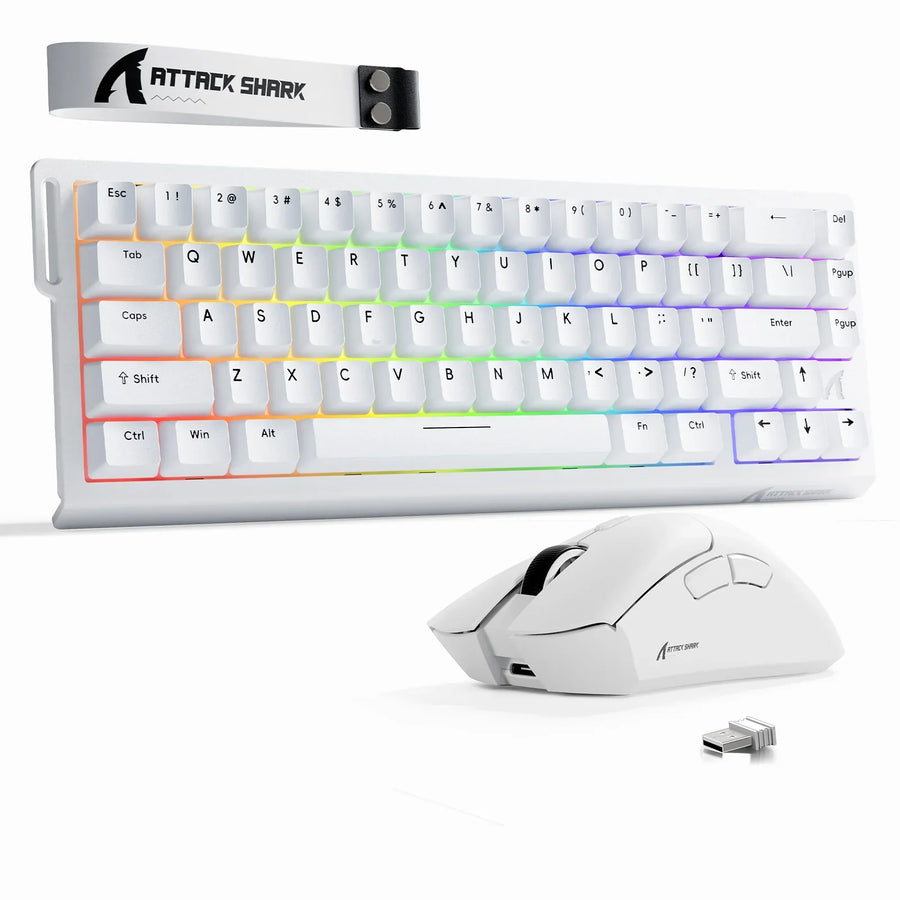
For the ATTACK SHARK X68 HE and R1 bundle, the separate X68 HE and R1 downloads on the official support page list distinct software entries for each device rather than one combined app. Do not assume a bundle listing means a single utility, shared profiles, or shared receiver behavior. Treat a separate utility as acceptable only when your software tolerance allows installing and updating two tools instead of one.
Match connection modes, keyboard layout, mouse shape, and desk space
Software compatibility does not guarantee a comfortable desk setup. Connection mode and physical dimensions need their own check before you commit.
Pick the connection workflow
- Wired suits a direct, cable-based setup with no receiver to place.
- 2.4 GHz suits a dedicated wireless mouse connection when the device supports it.
- Bluetooth suits convenience-first setups where its tradeoffs fit your use case.
Plan ports, cables, and receiver placement together
A keyboard and mouse can be functionally compatible and still create an awkward desk. Check the actual receiver, cable, and USB-port needs of your exact models instead of assuming a bundle uses one receiver for both devices; a receiver placement guide can help you plan spacing and USB interference for tri-mode mice specifically. Confirm your keyboard's layout and your mouse's shape leave enough movement room for your grip and desk size before you finalize either device.
Balance performance settings, then make lighting the final match
Match performance by comparing what each setting does for your workload, not by matching the biggest number on a spec sheet. A higher figure on one device does not confirm it works well with the other.
Compare settings by use, not by the biggest number
| Performance check | What it tells you | What it cannot prove |
|---|---|---|
| Reporting or polling rate | How often a device sends input data | That two devices are synchronized |
| Connection mode stability | Whether the link holds under your setup | Universal latency ranking |
| Actuation, DPI, or return-rate setting | Whether the exact device supports what you need | That a higher number improves your results |
Keep keyboard and mouse behavior separate
Keyboards vary in reporting frequency, and each connected keyboard reports its state on its own. That means a keyboard's polling figure does not prove it is synchronized with your mouse's polling figure. Judge the pair by connection stability and how the settings feel during actual use, rather than by whether the two numbers match.
Use a specific bundle only when its connection and control differences fit
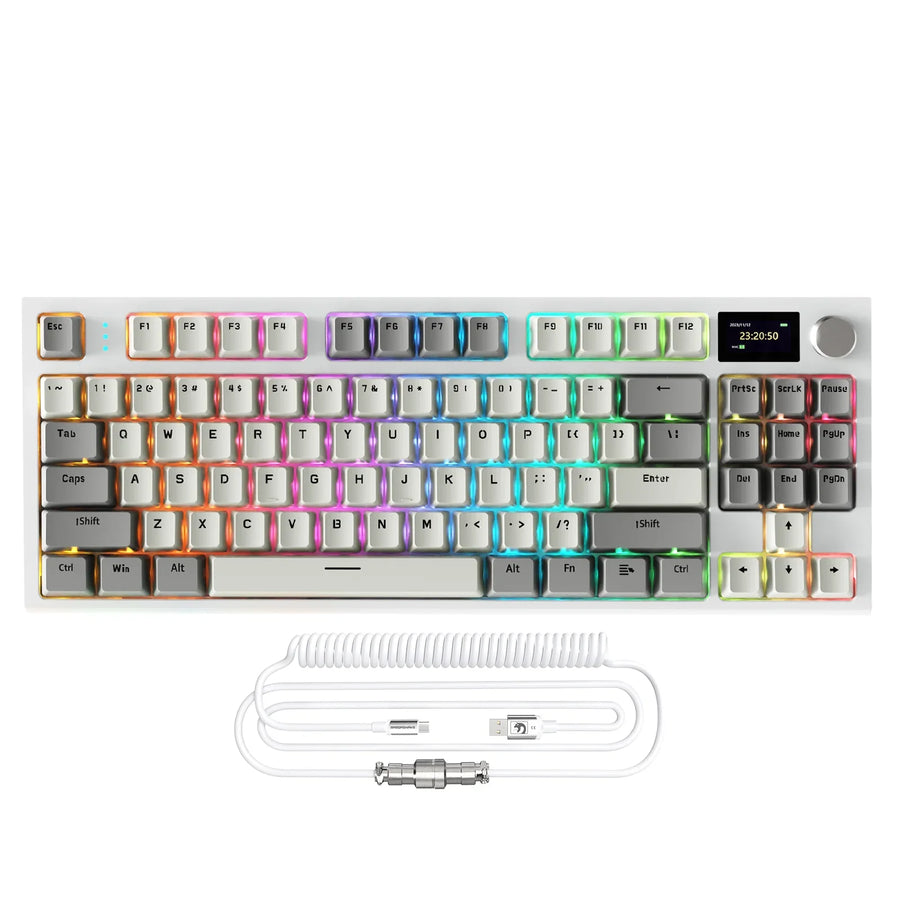
The rapid-trigger keyboard and mouse bundle is worth considering when you want a wired keyboard paired with a mouse that can switch connection modes. It is not a confirmed unified-software solution, so check the fit conditions below before buying.
What this bundle confirms
Our bundle pairs a USB-C wired X68 HE keyboard with an R1 mouse that supports wired, 2.4 GHz, and Bluetooth 5.2 connections. The supplied specifications list 8,000 Hz polling for the keyboard and a 125 to 1,000 Hz return-rate range for the mouse. These are model-specific facts about this pairing, not proof that the two devices share a receiver or identical latency behavior.

Who should choose it and who should pass
- Choose it if a wired keyboard with flexible mouse connectivity and rapid-trigger control fits your desk and workflow.
- Pass if you require one confirmed unified utility, one shared receiver, or identical wireless behavior across both devices.
- Check the official separate software entries for each device before you buy, so the setup work matches what you are willing to do.
Make color and lighting the final cohesion layer
Color should be the last thing you check, after software, connection, fit, and performance already work. A matching finish means little if the pair does not function the way you need.
Match the physical design language
- Coordinate form factor, finish, and keycap or shell profile before color.
- Treat keyboard size and mouse shape as part of the visual match, not just the paint color.
- Let desk space and hand fit override a purely visual pairing when the two conflict.
Treat lighting control as a protocol question
Windows Dynamic Lighting can control devices that implement the HID LampArray standard, which means cross-brand lighting coordination depends on that support, not on matching brand or color. You still need to confirm that your exact keyboard and mouse both implement it. Matching colors in product photos does not prove matching lighting effects, brightness, or software control, so a mixed-brand setup can look cohesive in design even when lighting stays independent.
Run one final exact-model pass/fail check
Before you check out, write down the exact keyboard and mouse models and mark each item below as pass, fail, or unconfirmed.
- Platform support: does each model list your operating system as supported?
- Required software: does each proprietary feature you need have confirmed utility support for that exact model?
- Connection mode: does the intended wired, 2.4 GHz, or Bluetooth workflow match what each device offers?
- Physical fit: do the keyboard layout, mouse shape, and available desk space work together?
- Lighting expectations: if you want synchronized RGB, do both devices confirm LampArray or an equivalent supported standard?
If any required item stays unconfirmed, treat the pair as a candidate rather than a matched setup. You can test key rollover and button response once you have the devices in hand. When every item you marked as required passes, we recommend finalizing your order with confidence in the fit you verified.
FAQs
Do my gaming keyboard and mouse need to be the same brand to work together?
No. Basic typing and pointing input generally works across brands when both devices follow supported HID standards and your operating system recognizes them. What differs is proprietary feature control, such as remapping, macros, onboard profiles, or synchronized lighting, which usually requires each brand's own software and confirmed support for your exact models. Check both product pages for your specific keyboard and mouse before assuming any advanced feature will carry over.
Do wireless gaming keyboards and mice share a single USB receiver?
Usually not unless both devices are explicitly designed around a single shared wireless ecosystem. Even when purchased from the same brand or within the same product bundle, keyboards and mice often use separate wireless protocols, chips, or dedicated 2.4 GHz dongles. Verify the device specifications and package contents before purchase if you want to use only one open USB port.
Can I synchronize RGB lighting across different peripheral brands without third-party bloatware?
Cross-brand lighting synchronization is only possible without separate background utilities if both devices implement open standards such as Windows Dynamic Lighting using the HID LampArray architecture. If either peripheral relies strictly on proprietary vendor lighting software, synchronized effects across mixed brands will require separate utilities or will not match directly. Check whether your exact models support open lighting standards before deciding.