


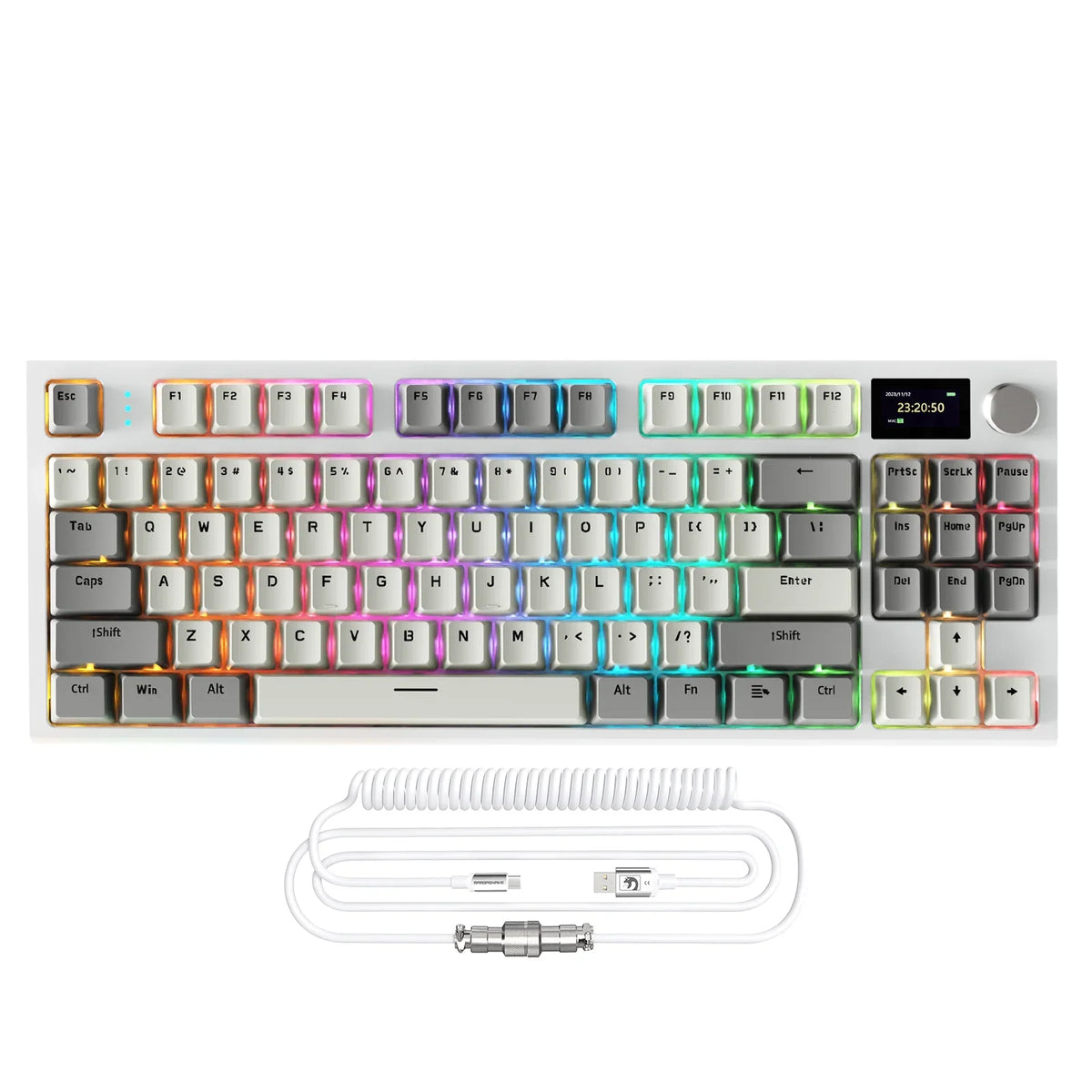
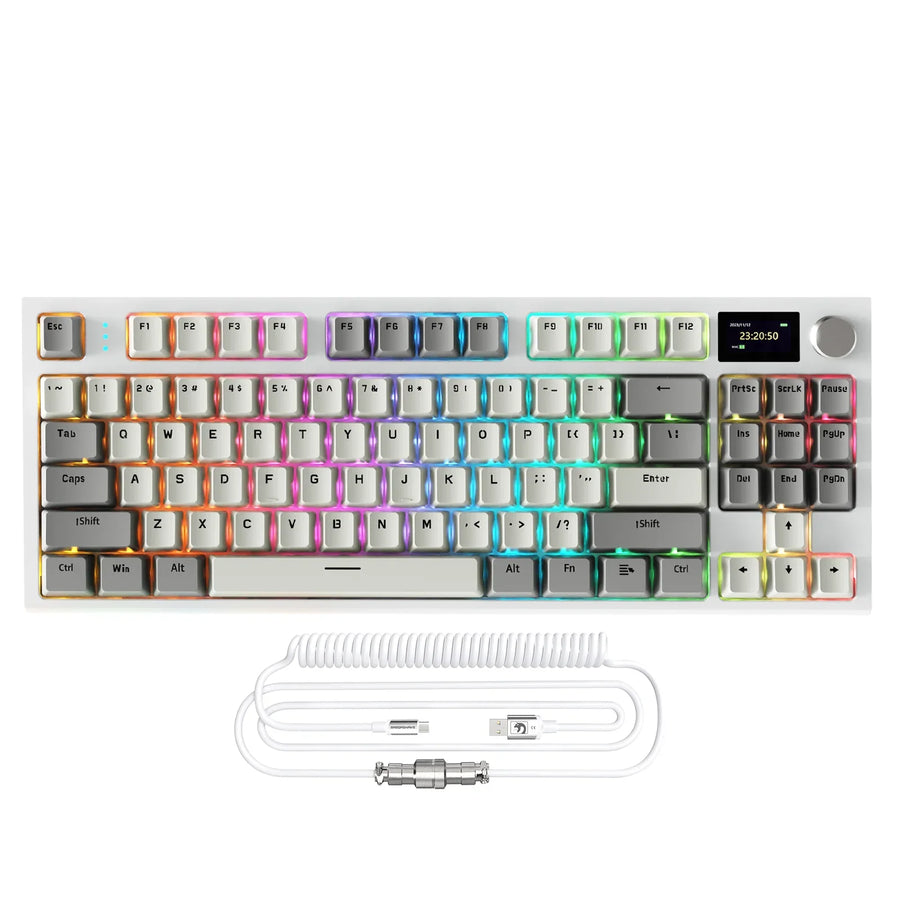
A keyboard with a smart display adds a small screen for at-a-glance information, decorative content, or extra controls, but running that screen wirelessly changes how long the battery lasts. The right balance depends on what you actually want the screen to do, not on screen size or resolution alone. Before comparing models, decide whether you need status information, media controls, or desk-aesthetic customization, because that choice changes which specs matter next.
Key Takeaways
- Pick a display job first: status monitoring, control/media integration, or decoration. Each one points to different priorities.
- A screen spec alone does not confirm brightness control, viewing angle, content support, or whether the display can be dimmed or turned off.
- Bluetooth generally draws less power, while 2.4GHz generally gives steadier, lower latency at a higher power cost.
- Independent testing on one screen-equipped keyboard showed about 92 hours of runtime with the OLED display and RGB on, versus over 1,600 hours with both off, so treat headline "LEDs off" runtime figures as a baseline, not a promise.
- Verified current examples like the K86 and X87 ULTRA show different trade-offs, but neither product page confirms screen-and-RGB-on runtime.
Start with the display job: status, control, or decoration
Decide what the screen needs to do before you compare specs. That single choice narrows which features actually matter for your setup.
Status-first displays
If you mainly want to glance at battery level or connection status, prioritize a screen that's easy to read from your normal seated position over one with animation. Legibility and placement matter more than color depth or motion here.
Control or media displays
If you want the screen tied to media playback or hardware controls, confirm the software and controls are actually documented for that model. A screen showing media data or acting as a shortcut panel needs verified software support, not just a display component.
Decoration-first displays
If personalization is the goal, prioritize content flexibility and how much control you have over brightness and animation. Accepting more active screen and RGB use generally means accepting a shorter wireless runtime between charges.
What a smart display can add to a mechanical keyboard
An integrated display can show status information, decorative or media content, or double as a control surface, depending on the model's software. The screen hardware itself doesn't tell you which of these it actually supports.
Status information versus decoration
Some displays are built mainly to show simple readouts like battery percentage or connection mode, while others are built for images, animations, or custom art. These are different jobs, and a keyboard rarely optimizes for both equally, so check the marketing copy against what the software actually lets you upload or display.
Controls and media information
Some wireless keyboards pair a customizable display with dedicated media controls, an approach Tom's Hardware documented on a model that combines an OLED smart display with hardware media keys. That combination is useful, but it's specific to models that confirm both the screen software and the physical controls, not a default feature of every display-equipped keyboard.

The software limit
Before assuming a display will do what you want, check what content types it accepts, whether profiles are easy to switch, whether brightness is adjustable, and whether the screen can be dimmed or turned off entirely. Product pages don't always spell these out, so treat an unconfirmed capability as absent until you find documentation for it, rather than assuming the screen supports everything shown in marketing photos.
How to judge screen usefulness at your desk
A display is only useful if you can actually read it from where you sit and control how it behaves. Judge it with a short checklist rather than screen size alone.
Placement, size, and viewing angle
Think about your normal seated distance and angle, not a marketing photo taken close up. A screen mounted flat on the deck may wash out at a steep angle, while one angled toward you may stay readable further back; confirm this fits your setup before buying.
Brightness, readability, and refresh behavior
Check whether brightness is adjustable and whether animated content can be toggled off. Neither an exact brightness value nor a refresh-rate number is safe to assume without a model-specific source, so rely on documented controls rather than guessing.
Content and software support
Confirm what content the display accepts, how profile switching works, and whether the screen can be dimmed, scheduled, or disabled through companion software. If a listing doesn't document these controls, assume they're unconfirmed rather than present, and check official documentation before you rely on that feature.
How display activity changes wireless battery trade-offs
Wireless battery life depends on connection mode, backlighting, and how active the display is, so compare battery claims only when those conditions match. A "LEDs off" runtime figure and a screen-and-RGB-on runtime figure are not interchangeable numbers.
Independent testing backs a few general patterns. Bluetooth generally uses less power, while a 2.4GHz connection generally offers lower and more consistent latency at a higher power cost, according to RTINGS's wireless keyboard testing. On a display-equipped model tested by Tom's Hardware, runtime measured about 92 hours with the OLED screen and RGB backlighting both on, compared with more than 1,600 hours with both turned off. That gap is specific to the tested model and settings, not a universal rule for every screen-equipped keyboard.
| Operating condition | What the evidence supports | How to use it |
|---|---|---|
| Bluetooth vs. 2.4GHz | Bluetooth generally lower power; 2.4GHz generally steadier, lower latency | Pick 2.4GHz for competitive gaming, Bluetooth for casual multi-device use |
| Screen + RGB active | Tested at ~92 hours on one model | Treat as a floor for active-display use, not a typical figure |
| Screen + RGB off | Tested at 1,600+ hours on the same model | Compare only against other "everything off" figures |
| Animation/refresh activity | Likely affects power draw; no universal figure supplied | Ask whether animation can be limited or disabled |
| Wired USB-C fallback | Removes battery concern while plugged in | Use during long sessions or when charging is inconvenient |
If uninterrupted runtime matters more than a headline number, plan around a wired fallback during long sessions rather than trusting an LEDs-off figure to predict active-display performance.
Match the keyboard to gaming, productivity, or desk aesthetics
Your use case should decide the connection mode and display priority before you look at any specific model. Each scenario carries a different trade-off.
Gaming at a desk
For competitive or fast-paced play, a 2.4GHz connection or a wired fallback protects against latency and dropped input, while a simple status readout limits mid-match distraction. Treat animated display effects and RGB as a runtime choice you make deliberately, not a default setting.
Productivity and work sessions
For long work sessions, prioritize a readable, low-distraction display over animation, and check Bluetooth support if you switch between a laptop, tablet, or desktop. Confirm the display can be dimmed or disabled so it doesn't pull attention during focused work.
Desk aesthetics and mixed use
If a personalized desk setup is the priority, favor content flexibility and brightness control, and accept that active screen and RGB use will likely shorten wireless runtime between charges. A wired charging routine, or browsing our wireless keyboard collection for tri-mode options, can offset that trade-off.
Current examples: compare verified features, not headline runtime
Two current examples show different smart-display priorities without one being a universal winner. Compare them on documented features, not on which listed runtime number looks bigger.

The K86 smart-display keyboard uses a compact 75% layout with an 86-key ANSI US arrangement, a 1.2-inch TFT color display, and 2.4GHz/Bluetooth 5.0/USB-C tri-mode connectivity. It lists a 4,000mAh battery rated up to 200 hours with backlighting off, a figure that describes the no-lighting condition rather than active-screen use.
The X87 ULTRA keyboard pairs a DIY-customizable dot-matrix screen with web-based driver software, the same tri-mode connectivity, and a larger 10,000mAh battery listed at up to 5,000 hours with LEDs off. That larger battery and dot-matrix customization suit shoppers who want more visual control, but the LEDs-off qualifier applies here too.
Neither listing confirms screen-and-RGB-on runtime, so use these as feature examples that match different priorities, not a side-by-side battery contest.
FAQs
How should I compare two smart-display keyboards when only one publishes screen-on battery data?
Never treat LEDs-off estimates and screen-on lab tests as comparable metrics. If one board documents screen-and-RGB active runtime while another only lists an idle or lighting-off figure, evaluate each strictly under its own tested state. When screen-on battery numbers are missing, plan around a wired USB-C connection during extended desk sessions until independent active-display benchmarks appear.
Can custom animations or system monitoring work without companion software?
Basic onboard indicators like connection mode and battery percentage usually run directly via internal firmware, but custom graphics, GIFs, or live PC telemetry require compatible companion software or a dedicated web driver. If a listing fails to document software compatibility or operating system support, treat advanced media and hardware monitoring as unconfirmed.
How can wireless battery life be preserved on a smart-screen keyboard?
To extend runtime between charges, lower the display brightness, switch from dynamic animations to a static status readout, and configure screen timeout or sleep settings in the driver. Choosing Bluetooth over 2.4GHz for everyday typing and reserving 2.4GHz or wired mode for gaming also cuts ongoing power draw.