


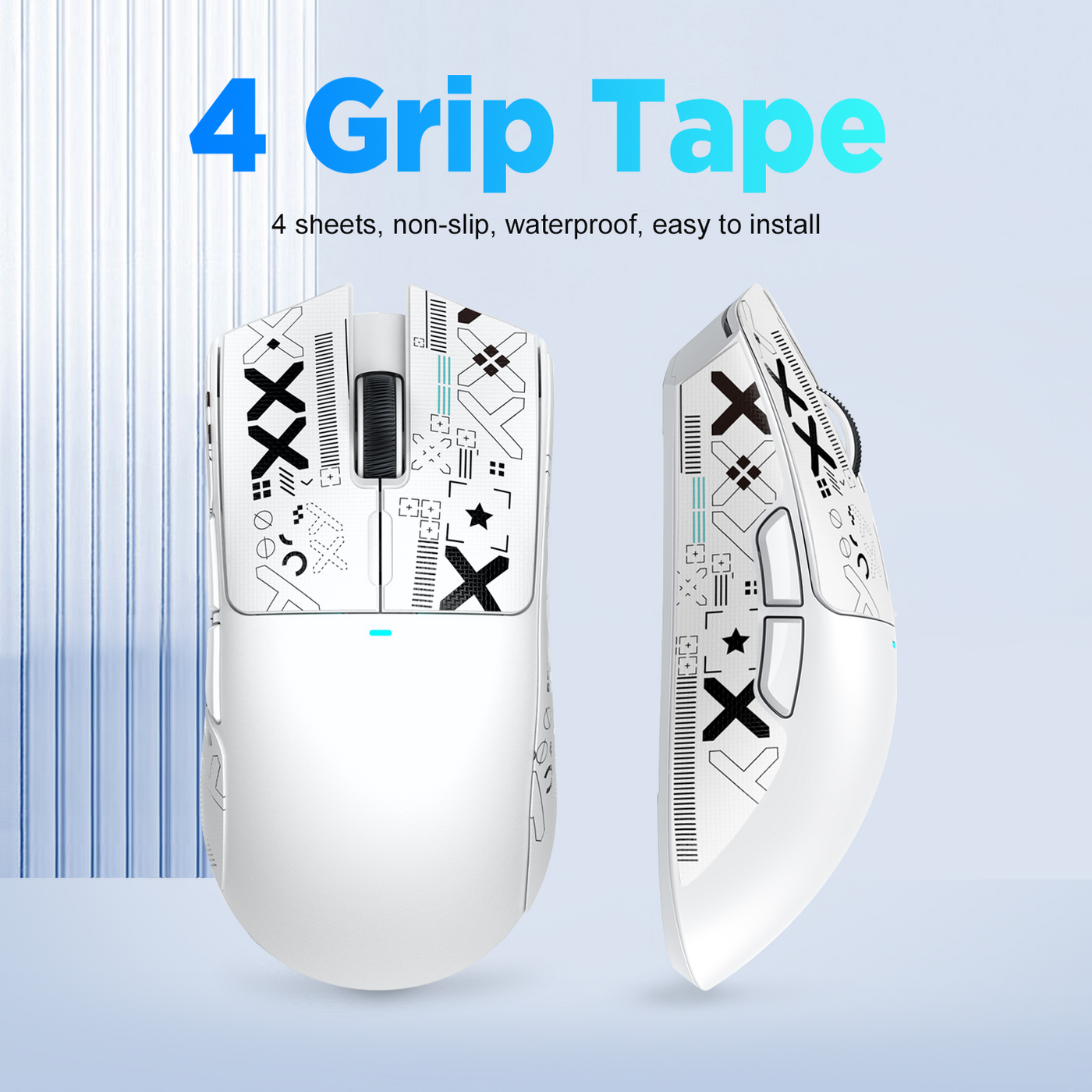
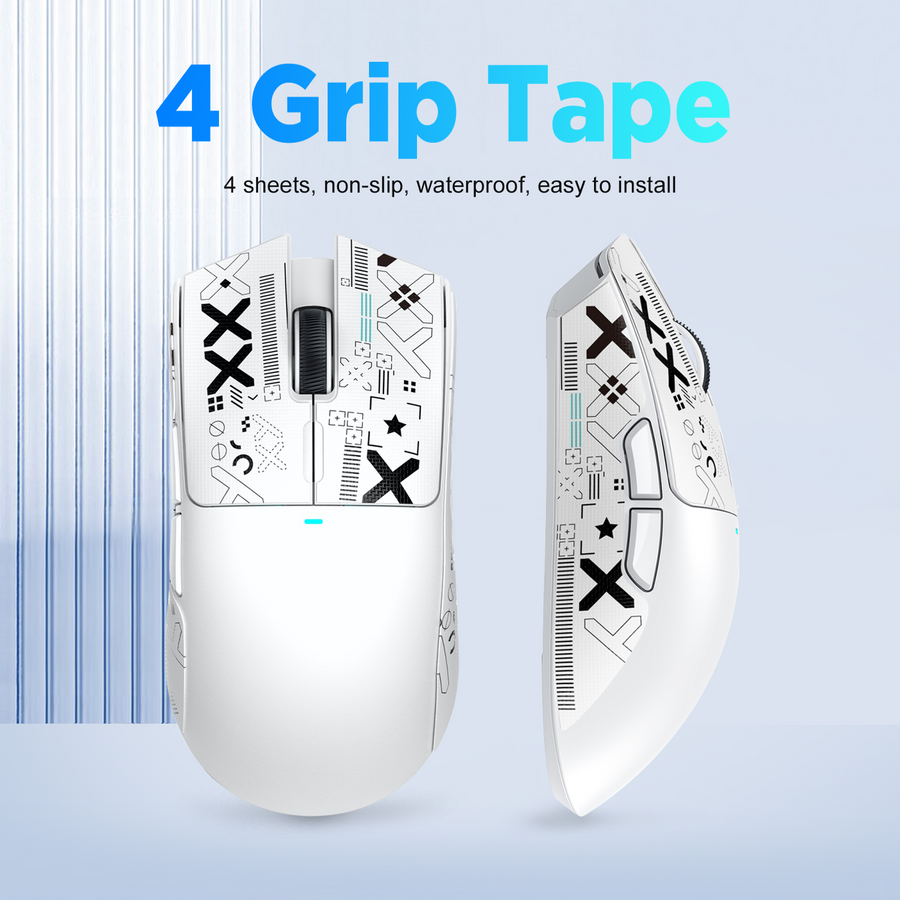
Mouse grip tape changes the contact between your hand and the shell, so it can affect friction, tactile feedback, and how the mouse feels in use. It does not change the mouse’s underlying shape or weight. Add it when the mouse already fits and slipping is the specific problem; consider a different mouse when the basic fit is wrong; leave the shell alone when it already feels secure. A limited test under the conditions that cause slipping is the best way to decide.

Decide whether you have a surface problem or a fit problem
Start by separating slipping from poor fit. If the mouse feels comfortable in size, shape, reach, weight, and overall hand position but becomes harder to control when your hands sweat or a long session changes your contact, mouse grip tape is a reasonable surface-level experiment and may make contact feel more secure for some players with sweaty hands. One hands-on review of textured tape reported better handling after prolonged use with sweaty hands, but that result is not universal.
If the mouse feels too large, too small, too high, too low, too heavy, or persistently uncomfortable even when the shell is dry, tape is not the right fix. It can change the surface your fingers touch, but it cannot correct the shell’s geometry or weight. A different mouse is the more relevant choice when the underlying fit remains wrong.

The goal is not the strongest texture or a promise of better aim. Keep the modification only if it creates steadier contact without new discomfort, extra clenching, awkward finger placement, click interference, or worse repositioning. That leaves you with three valid outcomes: test and add tape, change mice, or leave the shell unchanged.
See how mouse grip tape’s texture, thickness, and coverage affect use
Tape can change how a familiar shell feels without changing the shell itself. Evaluate texture, thickness, and coverage separately because each can affect contact in a different way.
Texture changes friction and tactile feedback
Texture changes the feel of the contact surface and may make a slippery shell easier to hold. This is the strongest case for gaming mouse grip tape when sweat makes the original finish less consistent. A more noticeable surface does not automatically mean more control, though. A reviewer’s texture preference illustrates why some players may prefer added friction while others may find a rough texture abrasive or distracting.
Judge the result by both stability and comfort. If the texture reduces slipping but makes you rub your fingers, clench harder, or focus on the surface during play, it has not solved the whole problem. The goal is natural contact, not the most aggressive-feeling material.
Thickness and coverage change contact points
Thickness can make your fingers or palm rest slightly differently even when the underlying shell dimensions stay the same. Coverage can have a similar effect by adding material to a side, button area, or another contact point. These changes may make a familiar mouse feel different enough to affect finger placement and repositioning.
Check the selected product’s stated thickness, cut pattern, and intended coverage instead of assuming all tape has the same effect. One independently reported kit used a 0.5 mm rubberized surface, but that is a product specification, not a universal standard.
Keep coverage focused on the area that actually loses stability. After application, confirm that your fingers still land naturally, the buttons remain easy to reach, and movement does not feel crowded. If added material makes any of those things worse, reduced slipping alone is not enough reason to keep it.
Run one reversible control test before full coverage
Use one limited comparison before committing to full coverage. This is a practical way to evaluate your own mouse, not a standardized gaming-performance benchmark.
- Set the baseline. Use the unchanged mouse during the familiar game, task, or extended session in which slipping occurs. Notice slipping, readjustments, extra clenching, click behavior, finger placement, and repositioning.
- Limit the modification. Place a small or partial section only on the affected contact area, and only if the selected product’s instructions permit temporary or limited application. Do not cover more of the shell simply because the texture feels noticeable.
- Repeat the same conditions. Use the same grip, movements, task, and sweaty or extended-session conditions. Comparing different conditions makes any perceived change harder to interpret.
- Apply the pass condition. Continue testing only if contact is repeatedly steadier and you do not develop rubbing, extra clenching, altered finger placement, click interference, restricted movement, or worse repositioning.
- Stop when it fails. Remove the test section if it causes discomfort or less controlled movement. Do not expand coverage to chase a stronger sensation.
A passing result means the limited section repeatedly addresses the slipping problem without creating a new fit problem. It does not prove that grip tape improves aim for everyone. A failed result points toward leaving the shell unchanged or reconsidering the mouse itself.
Verify fit, installation, cleaning, and removal before applying tape
Treat installation as product-specific. Before exposing the adhesive, confirm the exact model or contact area, the cut pattern, the stated thickness, and the selected product’s care and removal instructions. A product description may identify a target model or surface claim, but a general collection page does not establish compatibility with every mouse.
Prepare the shell and confirm the coverage
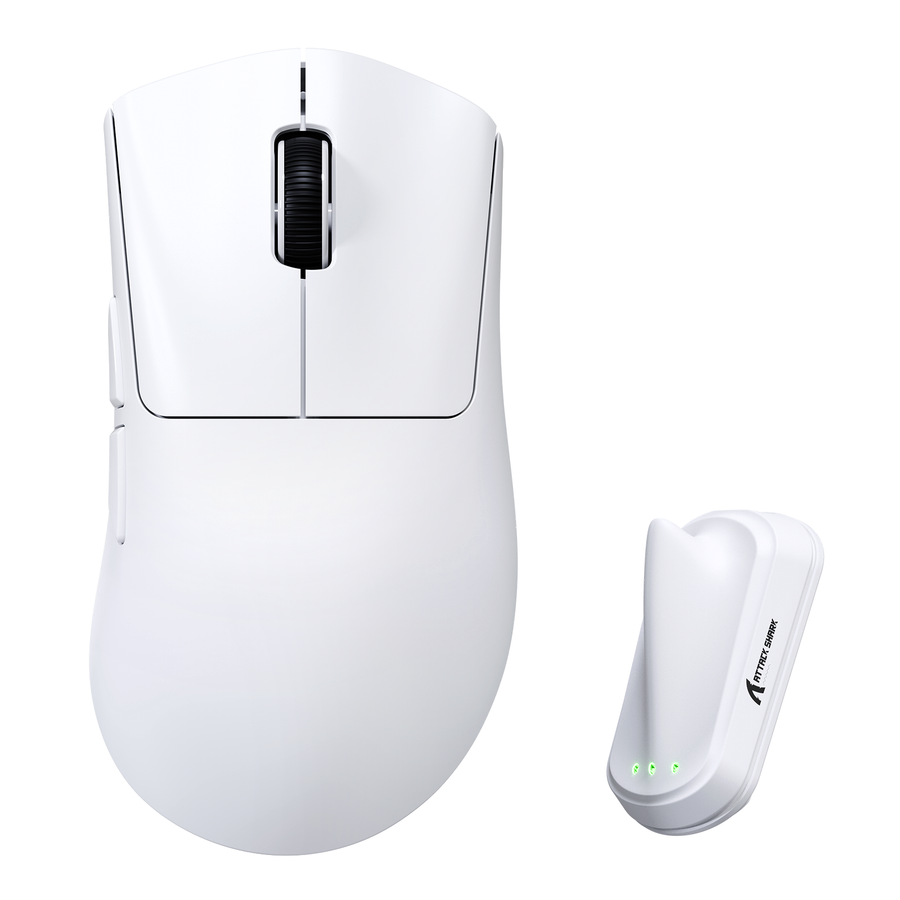
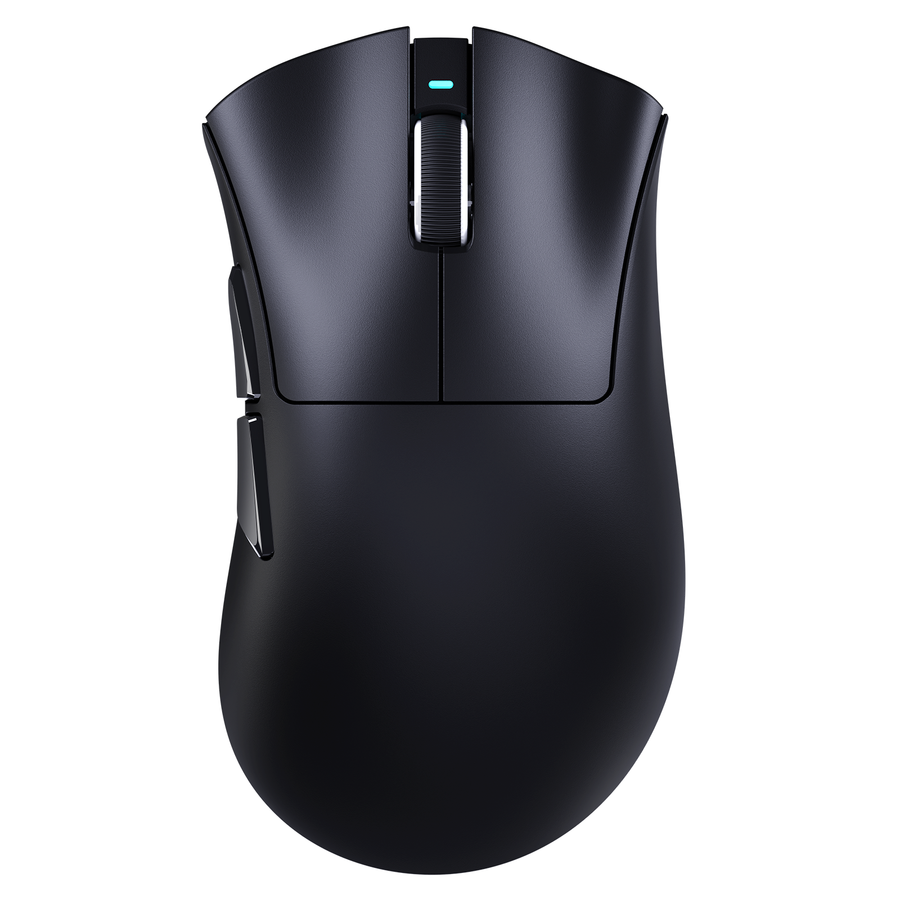
Check that the tape is intended for the exact mouse model or for the contact area you plan to modify. For the named products, X3/X3pro tape is listed for X3/X3pro mice, and X6 tape is listed for X6. Compatibility beyond those named matches remains unverified. The X11 listing states that the product is non-slip, waterproof, soft-touch, and made with 3M material, but it does not provide exact thickness or dimensions. Do not use those claims to infer a universal fit.
Plan the placement before removing the backing. Use a clean, dry contact area according to the product instructions, align the pieces carefully, and keep buttons, seams, openings, and moving parts clear unless the instructions explicitly allow coverage. Recheck finger placement, click access, and comfortable movement immediately after installation. Model-specific cuts may fit more predictably, but alignment still needs a hands-on check.
Plan care and removal before committing
Read the selected product’s cleaning, washing, care, and removal guidance rather than assuming that waterproofing or sweat-related claims apply to every cleaning method or use condition. Care instructions, adhesive behavior, and removal results vary by product and shell finish.
Plan for possible cleanup. A hands-on account involving another adhesive product reported residue after removal, so residue-free removal should not be treated as automatic. After removing a test section or full installation, inspect the shell and compare it with the unchanged baseline before trying another coverage pattern. For a separate overview of the cleanup decision, see cleaning adhesive residue after removal, but follow the selected tape’s own instructions first.
Make the final choice: add tape, change mice, or leave the shell alone
Add tape when the mouse already fits comfortably, slipping is the specific problem, and the limited test repeatedly produces steadier contact without discomfort, click interference, altered finger placement, or worse repositioning. Confirm the exact model or coverage before buying, because catalog availability does not prove compatibility.
Choose a different mouse when the shell still feels wrong in size, shape, reach, weight, button layout, or overall comfort. The modification changes the surface, not the underlying geometry or weight. It cannot turn a persistently unsuitable mouse into the right fit.
Leave the shell unchanged when it is already secure and comfortable, or when the test adds texture without a repeatable benefit. A review of an unchanged mouse provides a useful example of why added tape is not inherently necessary. If the test passes and the model or coverage is confirmed, you can browse the mouse grip tape collection as a shopping next step. If it fails, stop there and keep the unchanged shell or reassess the mouse’s fit.
Frequently Asked Questions
Is grip tape worth it?
It is worth trying when the mouse already fits and slipping is the specific problem, especially during sweaty or extended sessions. Use a limited test first; if comfort or control does not improve consistently, do not keep the modification.
Can grip tape improve aim or control?
It may make handling feel more secure for some players by changing contact and friction, but there is no basis for promising universal aim improvement. Judge repeated stability, comfort, clicks, and repositioning on your own mouse.
Does grip tape change mouse shape?
It does not change the underlying shell geometry. However, its thickness and coverage can change where your fingers contact the shell, so the familiar mouse may feel different in use.
Can grip tape help with sweaty hands?
It may help when sweat makes an otherwise comfortable mouse slip. Reproduce the same sweaty or extended-session conditions during the test and compare comfort as well as steadiness before applying full coverage.