


The fastest FPS setting is not always the most reliable. Very shallow actuation can make movement feel immediate, but it can also turn resting finger pressure into unwanted input. The ATTACK SHARK R86 HE is a rapid trigger keyboard with per-key actuation from 0.1 mm to 3.3 mm, 0.005 mm RT precision, and an 8000Hz polling rate. This guide explains how to tune those controls by key group, starting with moderate settings and adjusting only after consistent testing.
Why the Lowest Actuation Setting Is Not Always Better

Actuation distance determines how far a key travels before the keyboard registers the press. A shallower point requires less downward movement, while a deeper point gives your finger more room before an input is sent.
The R86 HE supports per-key actuation from 0.1 mm to 3.3 mm. Movement keys may benefit from a shallower setting, while weapon, map, chat, and utility keys usually need more deliberate presses. Giving every key the same sensitivity removes that distinction.
If movement feels twitchy or you trigger an action unintentionally, the problem may be excessive sensitivity rather than slow hardware. Raise the affected key slightly and test again. Preventing avoidable misinputs matters more than selecting a smaller value in software.
Establish a Stable Baseline Before Fine-Tuning
Connect the R86 HE directly through USB-C, open its web-based driver in a supported browser, and calibrate the keyboard when required. Keep advanced functions off during the first test so you can evaluate actuation without several settings changing the result at once.
A practical baseline is approximately 1.0 mm for your main game keys, with less frequently used keys set deeper. Play several unranked matches, training rounds, or practice scenarios before changing anything. Watch for three signals:
- A movement begins when you only rest a finger on the key.
- A key fails to register during a normal press.
- A repeated input registers inconsistently unless you fully release the key.
Set Actuation by Key Group
Different controls benefit from different levels of sensitivity. The following values offer a moderate starting point. Move them deeper if you press heavily or make accidental inputs. Move them shallower only after the current setting remains consistent.
| Key Group | Suggested Starting Point | What to Check |
|---|---|---|
| WASD movement | 0.8 to 1.0 mm | Unwanted movement, unstable stops, or keys activating under resting pressure |
| Jump, crouch, sprint, and walk | 0.8 to 1.2 mm | Accidental stance changes or missed repeated inputs |
| Reload, interact, weapon, and utility keys | 1.2 to 1.8 mm | Unintended reloads, weapon swaps, or ability use |
| Map, chat, menu, and navigation keys | 1.5 to 2.0 mm | Accidental interruptions during a match |
These ranges are deliberately conservative. Starting at 0.1 mm leaves little room for natural finger movement. Lowering a stable setting in small steps makes it easier to identify where speed improves and where accuracy begins to decline.
Tune Movement Keys as a Group
Set the four movement keys to the same starting point. Test short taps, sustained movement, quick direction changes, and diagonal movement. If you frequently hold W while using A or D, make sure normal pressure on neighboring keys does not create an unintended input.
Keep One-Press Actions More Deliberate
Reloading, changing weapons, opening the map, and activating utility usually require a clear single press. Set these keys slightly deeper than movement to create a small buffer between resting contact and a deliberate command.
Add Rapid Trigger Where Repeated Inputs Matter

Rapid Trigger changes how a key resets. Instead of making the key return to one fixed reset point, the keyboard follows its movement and can reset as the key begins to rise. This can make repeated taps and directional changes feel more immediate, especially when your finger does not fully release the switch between inputs.
Start by enabling Rapid Trigger on WASD and other controls you tap repeatedly. Leave it off on chat, menu, map, and rarely used keys during the first test. Test the same movement drill several times before making the setting more sensitive.
Its 0.005 mm RT adjustment precision describes how finely the setting can be adjusted. It does not mean every player should choose the smallest available value or that every small change will be noticeable during play. Consistency still matters more than the lowest number in the driver.
Use 8000Hz Polling as Part of the Complete Input Chain
Polling rate describes how often the keyboard can report input to the computer. This model supports an 8000Hz polling rate alongside a 256K scan rate.
Enable 8000Hz when you want the highest supported report rate, but evaluate it within the complete system. Frame rate, game processing, USB configuration, and display refresh also affect the final experience. A higher polling setting cannot correct unstable frame delivery or an actuation profile that causes misinputs.
Use a direct USB connection and test for stable performance. If problems appear, compare a lower polling setting while keeping every other keyboard setting unchanged.
Test One Change at a Time
Changing actuation, Rapid Trigger, keybinds, and polling rate together makes it difficult to identify what improved or hurt your control. A short testing cycle produces more reliable results:
1. Save a baseline profile. Keep a dependable setup you can return to.
2. Choose one key group and one variable. Adjust actuation or Rapid Trigger, but not both at once.
3. Repeat the same drill. Use the same movement route, practice scenario, or unranked mode.
4. Record errors as well as speed. Note accidental presses, missed inputs, and unstable direction changes.
5. Keep the change only if it remains consistent. One good round is not enough to establish a better setting.
Settings can be managed through the web-based driver or desktop software, while on-board memory stores the configuration on the keyboard. Keep a stable general profile alongside the more sensitive FPS profile so everyday typing does not inherit every competitive adjustment.
Balance Mouse Space With Everyday Use
Keyboard settings are only part of an FPS setup. Players using lower mouse sensitivity often need more horizontal desk space for wide movements. A full-size keyboard can push the mouse area inward, while an extremely small layout may remove keys used for navigation or everyday work.
The R86 HE uses an 81-key 80% layout that retains the function row, arrow keys, and essential navigation controls while reducing overall width. Position the board so you can reach WASD, crouch, jump, and weapon controls without crowding the mouse area.
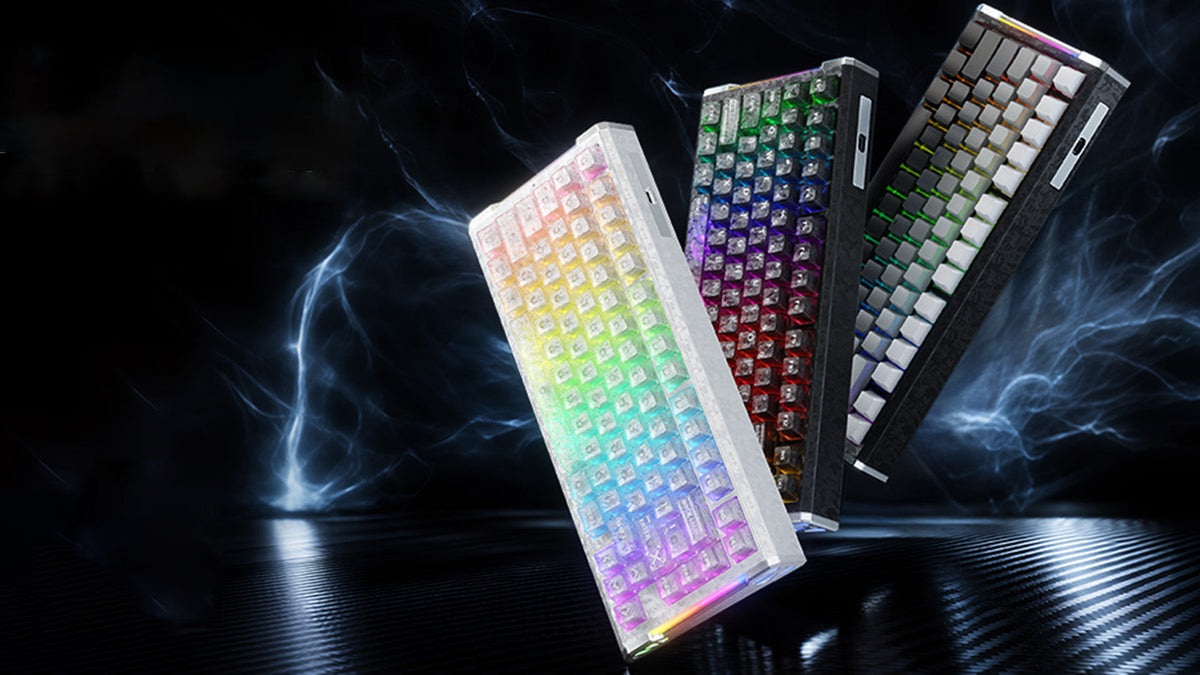
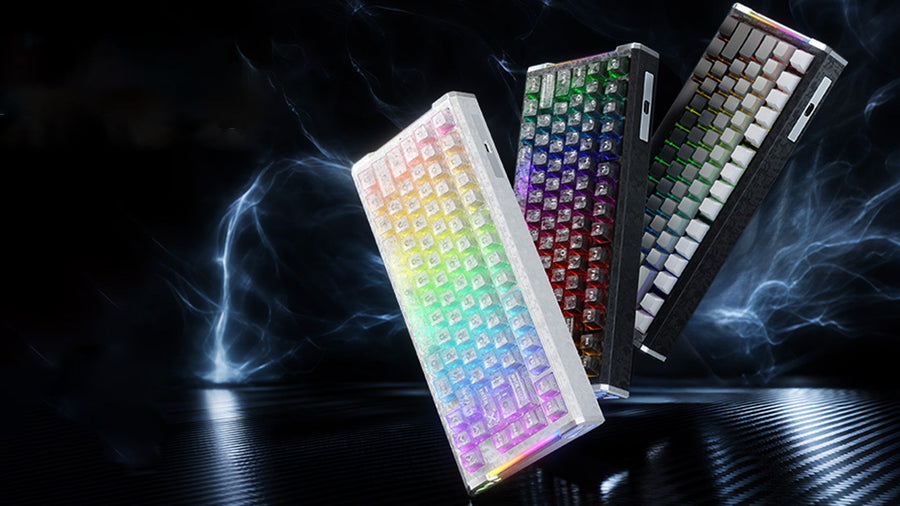
Beyond competitive matches, the forged carbon fiber composite top case, CNC-machined aluminum side accents, FR4 plate, HUANO Glass Jade magnetic switches, and five-layer sound-dampening structure give the R86 HE a more solid feel and cleaner typing sound for everyday desktop use.
Build a More Consistent FPS Setup With the R86 HE
The R86 HE gives you the actuation range, Rapid Trigger control, and practical 81-key layout needed to build an FPS profile around your own movement habits. Use the settings above as a starting point, then retain only the changes that remain consistent across full matches.
From September 7, 2026 (PDT), you can reserve the ATTACK SHARK R86 HE with a US$2 non-refundable deposit and receive a US$40 discount code for the September 21 launch. The reservation is not the purchase of the physical keyboard. Review the full pre-order terms, regional restrictions, and code requirements on the product page before reserving.
FAQ about ATTACK SHARK R86 HE
Q1. Is the ATTACK SHARK R86 HE Wired or Wireless?
The R86 HE uses a USB-C wired connection. A wired connection supports its 8000Hz polling mode and avoids the need to manage a wireless receiver or battery. Connect it directly to the computer when testing high polling rates so the USB path remains simple and consistent.
Q2. Can I Replace the Magnetic Switches?
Yes. The R86 HE is hot-swappable with compatible magnetic switches. Magnetic switches can differ in magnet position and calibration behavior, so compatibility should be checked in the software interface before installation. Recalibrate the keyboard after a switch change when the software requests it.
Q3. Is Snap Tap the Same as Rapid Trigger?
No. Rapid Trigger controls how an individual key resets as it moves. Snap Tap manages the priority of opposing directional inputs. The R86 HE supports both functions, but they should be configured separately. Rules for input-priority features may differ between games and tournaments, so check the current policy before competitive use.
Q4. Does Changing the Polling Rate Change the Actuation Point?
No. Polling rate controls how often the keyboard reports input to the computer, while actuation controls how far a key travels before registering. You can test either setting without automatically changing the other, which is why they should be adjusted separately during setup.
Q5. Should I Enable DKS, Mod-Tap, or Toggle Key for FPS Games?
Not necessarily. The R86 HE supports DKS, Mod-Tap, and Toggle Key, but these functions are not required for a basic FPS profile. Establish stable actuation and Rapid Trigger settings first. Add an advanced function only when it serves a specific keybind and complies with the current rules of the game or tournament.