


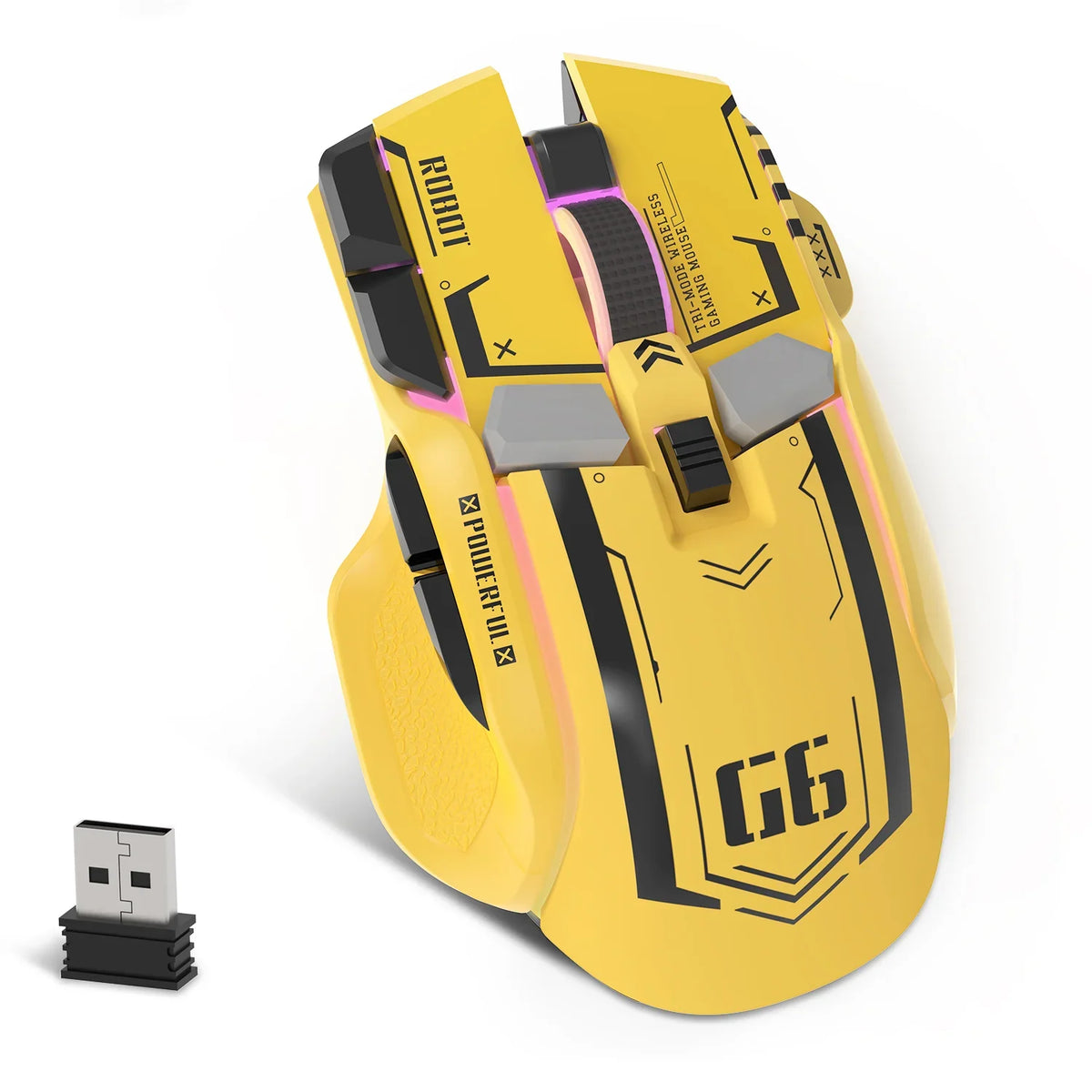
Before you change DPI, check two Windows mouse settings: pointer speed and Enhance pointer precision. Write down how each one is set now. Also note any DPI value your mouse or its software shows and your game's own sensitivity value, so you can change one thing at a time and undo it if needed.
Windows 10 and Windows 11 put these controls in different places. Games also don't all read the mouse the same way. That's why the check starts with your Windows version and ends in the game you actually play.
Which Windows mouse settings should you check before changing DPI?
Start with pointer speed and Enhance pointer precision, since both belong to Windows rather than to the mouse or the game. Microsoft documents a separate Windows 10 mouse settings path and Windows 11 mouse settings path, so use the row that matches your version.
| Windows version | Documented path | Controls to inspect |
|---|---|---|
| Windows 10 | Start > Settings > Devices > Mouse > Additional mouse options (under Related settings) > Pointer Options tab | Pointer speed, Enhance pointer precision checkbox |
| Windows 11 | Start > Settings > Bluetooth & devices > Mouse | Mouse pointer speed slider, Enhance pointer precision |
| Windows 11, more options | Mouse page > Additional mouse settings > Pointer Options tab | Other pointer behaviors |
Record what you see before you touch anything. A screenshot of each window works best. It captures the slider position and the on or off state exactly as Windows shows them. Write down which Windows version you're on, too, because the labels and menus differ.
Give Enhance pointer precision its own line in your notes. Microsoft's pointer-accuracy description says the option is meant to make the pointer more accurate when the mouse moves slowly. That describes the desktop pointer, not what happens inside a specific game. The game check later in this guide covers that part.
How Windows pointer speed differs from DPI and game sensitivity
Windows pointer speed controls the desktop cursor. DPI is a value that comes from the mouse, and sensitivity is set inside the game. Keep all three as separate entries in your notes.

Microsoft's developer documentation gives a plain Windows cursor-speed description. Mouse speed is a system variable that controls how far the cursor moves when you move the mouse. It applies across Windows and is the slider you recorded above.
DPI (dots per inch) works at a different level. In Microsoft's description of mouse-reported resolution, DPI measures the resolution of the movement data the mouse sends to the PC. Microsoft's example contrasts a standard mouse at 400 DPI with a high-definition mouse at 800 DPI or greater. The same article notes that a game using only the standard WM_MOUSEMOVE message can't access the mouse's full, unfiltered resolution. So how much of your DPI setting a game can use depends partly on how that game reads input.
Your game's sensitivity setting is a third value, with its own label and scale. These numbers don't share a scale, so don't try to convert one into another. Your baseline should look like this:
- Windows: version, pointer speed slider position, and Enhance pointer precision on or off.
- Mouse: the DPI value or profile exactly as the mouse or its software displays it. If nothing is shown, write "not displayed" instead of guessing.
- Game: the game name, the sensitivity label and value, and whether you're testing menus or gameplay.
If you use one of our mice, get its software and manual from our driver download page before you record the mouse entry. If you're weighing a lower DPI against a high polling rate, our guide to low DPI and 8K polling explains the stability and accuracy trade-offs.
How to check whether a Windows setting matters in your game
Whether a Windows pointer setting reaches your game depends on how the game reads the mouse. The desktop can't show you that, so check the game itself.
Microsoft documents more than one of the Windows mouse input routes. In the traditional model, an app receives mouse messages such as WM_MOUSEMOVE. With raw input, the app must register for it first. It then receives data through WM_INPUT and processes that data for its own needs.
The processing differs as well. Microsoft's guide to WM_MOUSEMOVE and WM_INPUT processing says Windows applies pointer acceleration to WM_MOUSEMOVE data, while WM_INPUT data has no ballistics applied. That's why your Windows mouse settings may behave one way on the desktop and differently in a game. To find out for your game:
- Name the game and the context, such as menus or active gameplay. Keep both attached to any result.
- Look in the game's mouse or control settings and its official documentation for a stated input method, such as a raw input option.
- Record what it says, word for word. A raw input label tells you the route. It doesn't tell you whether pointer speed or Enhance pointer precision has an effect.
- If the game says nothing, mark its behavior as unknown and run the one-control test below in that game and context.
If you also run a high polling rate mouse, our Windows 11 raw input tuning guide covers stability settings for that setup.
Choose one control to test, then restore or keep the change
Pick the one control tied to your question and change only that. Compare the result to your baseline, then keep the change or put the original value back.
- Open your saved baseline and confirm every value still matches it.
- Choose one control: Windows pointer speed, Enhance pointer precision, mouse DPI, or game sensitivity.
- Change only that control. Leave every other recorded value as it was.
- Go back to the same game and context. Start from the same spot, move the mouse at a similar physical speed, and cover the same measured distance as in the baseline—for example, sliding it 4 inches along a ruler on your desk.
- Note where the cursor or view ends up and compare it to the baseline endpoint.
- Keep the change if the result is what you wanted. If not, restore the original value before you test a different control.
Treat each result as true for that game and context only. A change that helps in one game's menus may not carry over to its gameplay or to another title. If you're setting up a new mouse, our post-unboxing mouse checks include a DPI accuracy check you can run before you start.

FAQs
Should I turn Enhance pointer precision off for gaming?
There's no universal answer. Microsoft describes the option as a way to make the pointer more accurate during slow movement on the desktop. Whether it reaches your game depends on how that game reads mouse input. If you're unsure, treat it as the single control in your next test and keep whichever state gives the result you want.
Does the Windows pointer speed slider change my mouse's DPI?
No. They're separate controls in separate places. The slider is a Windows system setting for cursor movement. DPI describes the movement data the mouse itself reports, and you set it on the mouse or in its software, if it has any.
Can I convert my Windows, DPI, and game values into one number?
Not reliably. Each layer uses its own label and scale, and how they combine depends on the game's input route. Record each value as displayed and compare results through a controlled test instead of a formula.
What if my mouse has no software or DPI display?
Write "not displayed" in your baseline and don't assume a default. You can still test your Windows mouse settings and game sensitivity one at a time. Just leave the mouse entry unchanged during every test so it doesn't become a hidden variable.