


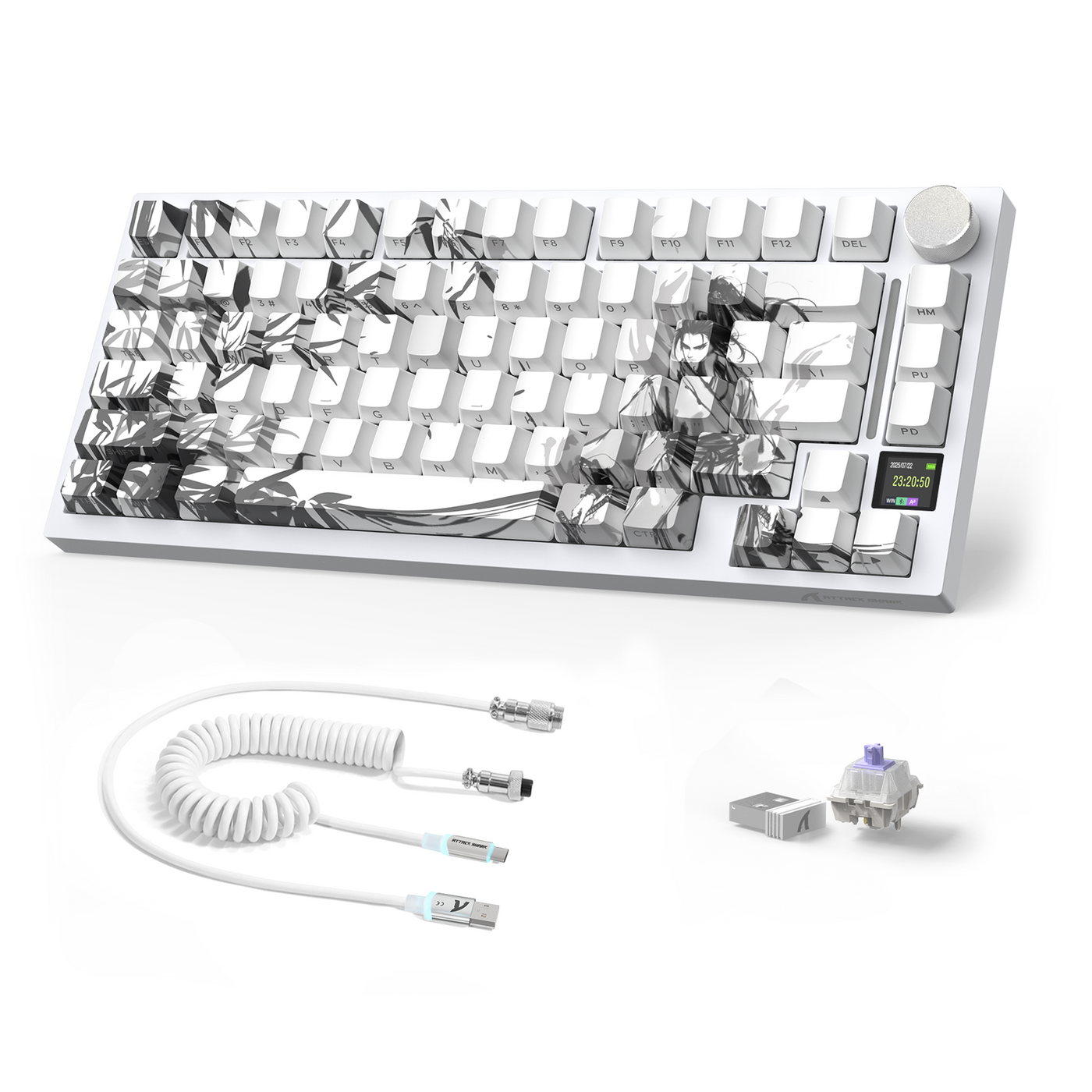
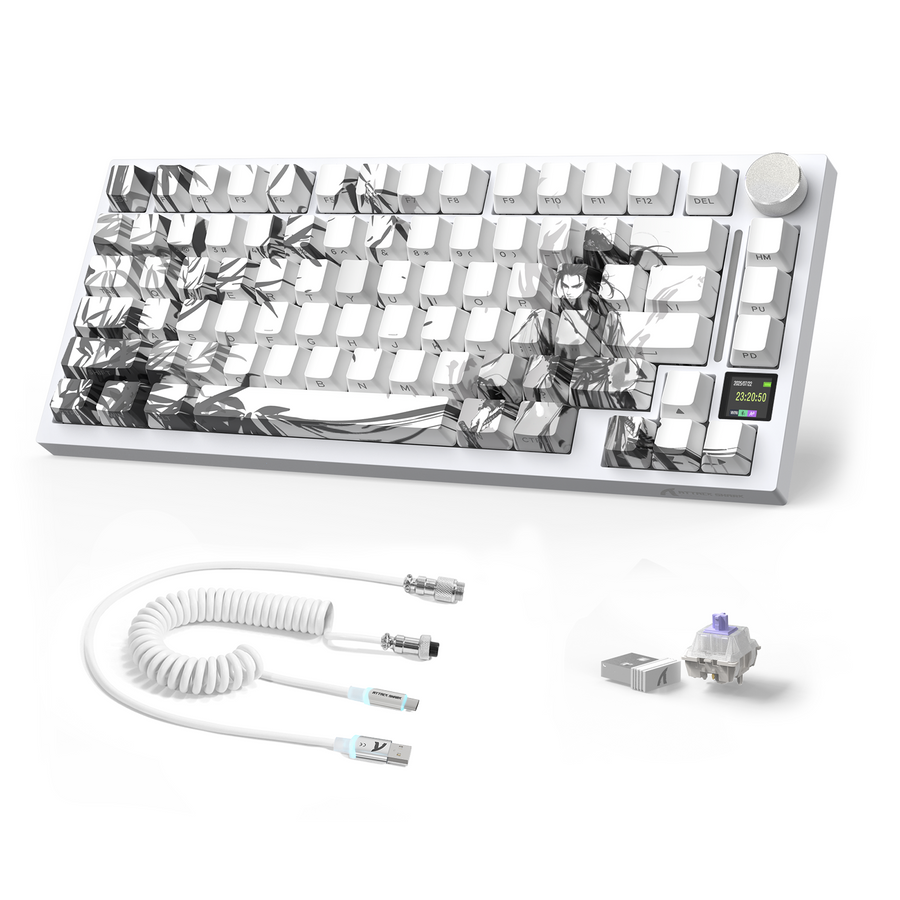
A wireless gaming keyboard USB cable isn't automatically required for wireless use. Bluetooth or a 2.4 GHz receiver may handle everyday typing without a cable connected to the keyboard. USB may still be necessary for charging, a documented wired fallback, firmware updates, or configuration. A 2.4 GHz receiver also needs a compatible computer port. The keyboard's manual determines whether its USB connection carries power, data, or both.

Do You Need a USB Cable to Set Up a Wireless Gaming Keyboard?
No permanent cable is required for ordinary wireless use when the keyboard supports a wireless mode your computer can use. Bluetooth pairs directly with a compatible host, while a 2.4 GHz setup uses a receiver connected to the computer. In either case, the keyboard itself can remain unplugged during normal wireless sessions.
A cable may still be part of the setup. A rechargeable model may need periodic charging, a model with USB data support may offer wired fallback, and some firmware or configuration procedures may require a direct connection. These are separate requirements, not one universal USB requirement. A cable that fits the keyboard does not prove that it supports wired data.
If wired fallback or USB-based firmware work matters to you, choose a model whose documentation lists the required USB data mode and procedure. Review the keyboard's specifications or manual before buying. The word “wireless,” a USB-C connector, or an included cable does not prove that every USB function is supported.
What Role Does USB Play in the Keyboard Setup?
USB can serve several different roles in a wireless keyboard setup. Separate the keyboard's own cable from the computer's receiver connection, then determine whether the task requires power, data, or a model-specific maintenance connection.
USB Power for Charging
A rechargeable keyboard may need a USB cable to recharge between wireless sessions or to receive power from a computer or compatible power source. That answers a power question only. It does not establish that the keyboard accepts keystrokes through the cable or that the cable supports firmware access.
USB connections can provide power, data, or both, and cable capabilities vary. The distinction between USB power and data is why charging and wired operation should be treated as separate requirements. Match the keyboard connector and charging instructions to the task, including whether the manual describes use while connected. Charging and typing at the same time are not automatic features.
What Does a Wireless Gaming Keyboard USB Cable Do?
Some wireless keyboards also accept input through a direct USB data connection. That provides a wired fallback for a desktop setup, a low-battery situation, or another manufacturer-supported connection method. Other models may use their USB port for charging only.
A USB-C connector and a cable that physically fits are not enough. Look for USB wired mode or USB data mode in the specifications, then use a cable described as data-capable. If the manual describes USB only as a charging connection, do not rely on it for wired gaming, typing, firmware, or configuration.
USB Port for a 2.4 GHz Receiver
A 2.4 GHz wireless keyboard generally uses a separate receiver connected to the computer. That host-side USB port is a different setup item from the cable plugged into the keyboard for charging or wired data. Prepare the receiver and any listed adapter or extension separately.
A reviewed tri-mode keyboard uses a USB-C-to-USB-A cord for its wired connection and a separate USB-C dongle for wireless pairing. That example does not establish a universal connector arrangement. The receiver is not a substitute for the keyboard's charging cable or wired-data connection.
USB Data for Firmware or Configuration
Firmware and configuration requirements vary by model and software. Ordinary wireless typing shows that the selected wireless connection works for that task; it does not show that every maintenance task uses the same connection.
Bluetooth pairing therefore does not guarantee Bluetooth firmware updates. For example, USB firmware instructions for one wireless keyboard model require a USB connection to a computer for firmware work, so consult the model's updater instructions before starting.
Keep the model's manual or support instructions available before connecting anything. Match the connector and cable function to the task instead of treating a wireless connection, receiver, and USB cable as interchangeable.
Which Connection Mode Should You Prepare?
Choose the connection path based on the host ports and fallback behavior you need. Bluetooth may avoid a keyboard cable, 2.4 GHz requires a receiver and a compatible computer port, and wired USB requires documented data support plus a suitable cable.
| Mode | What must connect | What to verify |
|---|---|---|
| Bluetooth | The keyboard pairs with a compatible computer or other host. | Bluetooth support, the pairing process, and whether maintenance tasks use another connection. |
| 2.4 GHz wireless receiver | The keyboard communicates with its receiver, and the receiver connects to a computer USB port. | The receiver, the host port or adapter, and the model's pairing instructions. |
| Wired USB | A cable connects the keyboard directly to a compatible computer port. | USB wired or data mode, connector type, cable data capability, and any documented mode switch or software requirement. |

A Bluetooth setup can be the simplest choice when your computer supports the keyboard's pairing method and you do not need a wired fallback. A receiver-based setup can be a better fit when the model supports 2.4 GHz and you have the required computer port available. In either case, the keyboard may still need a charging cable periodically.
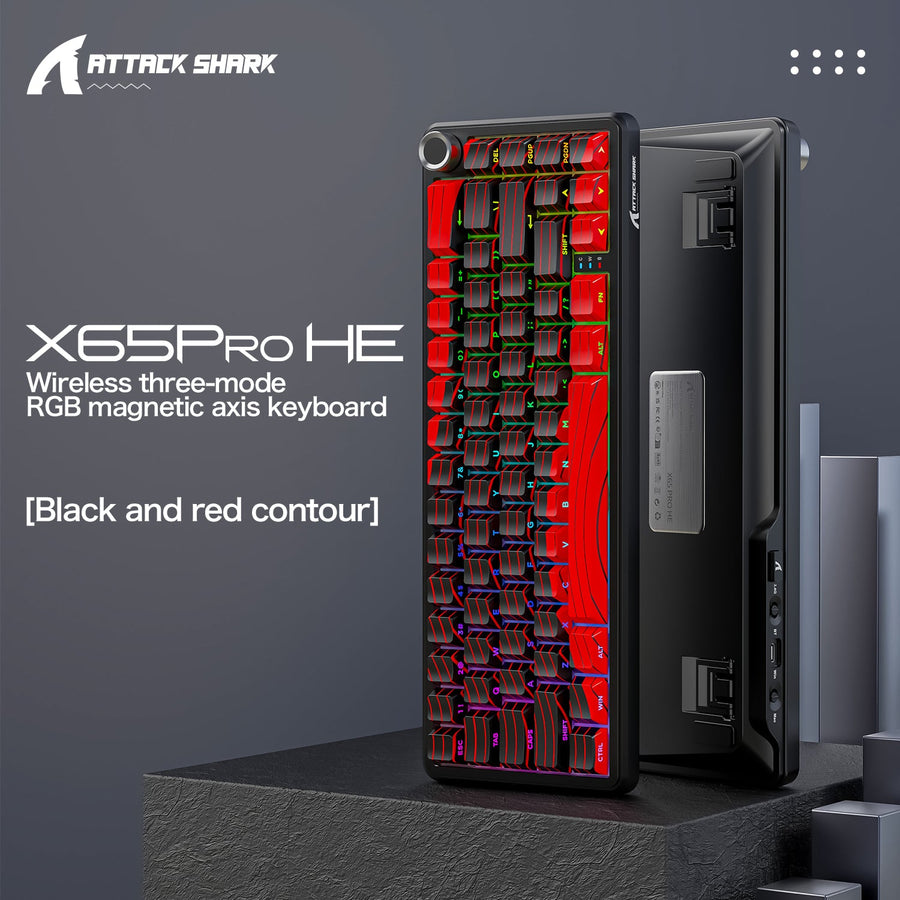
For a concrete tri-mode example, the tri-mode USB-C example lists 2.4G Wireless, Bluetooth 5.0, and USB-C Wired connectivity for the ATTACK SHARK X820ULTRA. That listed connectivity applies to this model and does not establish that every wireless gaming keyboard offers the same modes or that its cable supports every maintenance task.
If your computer lacks the required Bluetooth support or an available USB port, use the model's other documented mode before buying. Connector shape alone cannot establish compatibility.
What Should You Check Before Buying or Connecting?
Use this sequence to determine whether you need a wireless gaming keyboard USB cable for your specific setup. Keep the exact model manual or support page open, especially for firmware and configuration requirements.
- Identify the keyboard-side connector. Note whether the keyboard uses USB-C, micro-USB, or another documented connector. Do not infer the connector from a product photo or from another model in the same product line.
- Separate power from data. Determine whether the planned cable is intended only for charging or also carries USB data. Cable capabilities vary, so physical fit is not enough.
- Count the computer's available ports. A direct keyboard cable and a 2.4 GHz receiver may need separate host connections. Include the computer, dock, hub, and any documented adapter arrangement you plan to use.
- Establish the charging requirement. Determine whether the keyboard has a rechargeable battery, which charging connection the manual specifies, and whether use while connected is supported.
- Prepare the receiver separately. For 2.4 GHz use, locate the receiver and note the required host port, adapter, extension, or pairing step. The receiver is not a substitute for the keyboard's charging cable.
- Review Bluetooth pairing if relevant. Make sure the computer supports the required Bluetooth connection and that the keyboard's pairing process fits your host. Bluetooth typing does not automatically cover firmware or configuration tasks.
- Establish wired USB mode. If wired fallback matters, look for an explicit USB wired or USB data mode in the specifications or manual. Use a suitable data-capable cable and the documented computer port.
- Locate firmware and configuration access. Determine whether the model's updater or configuration utility requires Bluetooth, the receiver, direct USB, or a particular connection state. Some models require direct USB for firmware work, so wireless typing alone is not enough.
- Match every requirement to the exact documentation. Use the model's driver download page as a navigation path when it applies. The manual or support instructions control the model's connector, receiver, charging, wired-data, and maintenance requirements.
Prepare a cable when charging, wired data, or documented maintenance requires it, and reserve a separate receiver port for 2.4 GHz use. Before ordering or connecting the keyboard, match each requirement to the model documentation.
Frequently Asked Questions
These questions separate ordinary wireless typing from charging, wired use, and maintenance requirements.
Can a wireless gaming keyboard be used wired?
Yes, but only when the model documentation explicitly lists USB wired or USB data mode. A cable that charges the keyboard is not enough evidence of wired fallback. Match the mode, port, and cable to the stated requirements before relying on a direct connection.
Do wireless gaming keyboards need a USB charging cable?
Rechargeable models may need a compatible cable between wireless sessions, even when daily typing is wireless. Charging requirements and use while connected vary by model. The manual identifies the required charging connection and whether connected use is supported.
Can firmware be updated over Bluetooth?
Not necessarily. Bluetooth pairing confirms ordinary Bluetooth communication, not support for every maintenance function. Follow the model's updater instructions because some procedures require a direct USB connection.
Does a 2.4 GHz wireless keyboard need a USB cable?
It needs its receiver connected to a compatible computer port, but that is separate from the keyboard's own charging or wired-data cable. The model documentation determines whether an additional keyboard cable is needed for charging, wired fallback, or maintenance.