


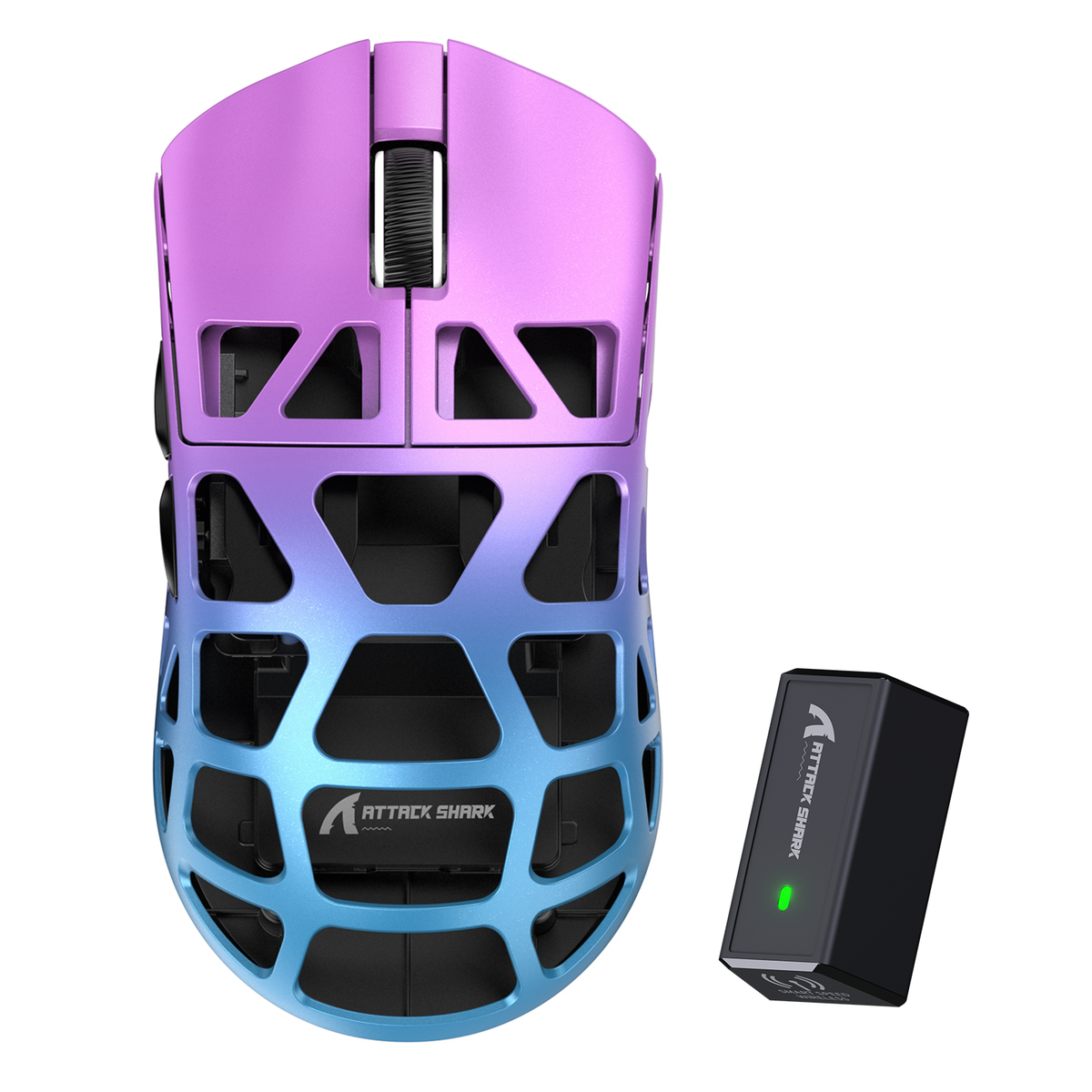
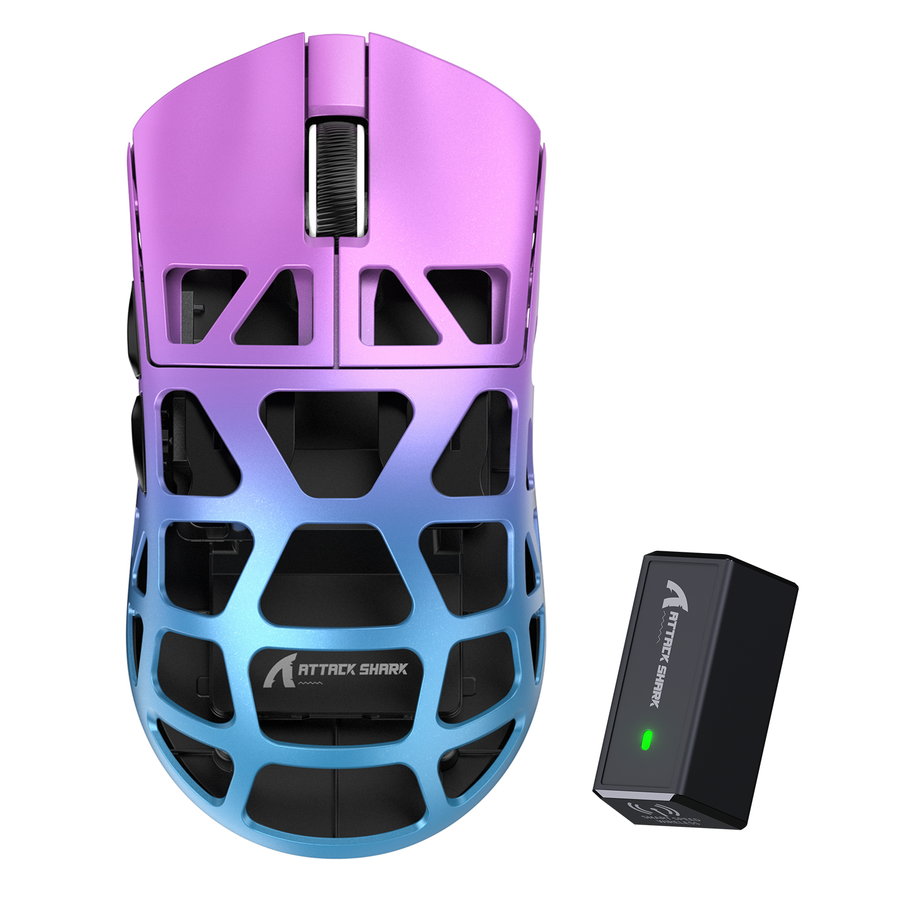
When a wireless gaming mouse disconnects after sleep, start with reversible checks rather than assuming the mouse is defective. First separate computer sleep from the mouse's own idle sleep, then test receiver placement, a temporary Windows power setting, reconnect and battery checks, available driver updates, and exact-model firmware only when documented. Persistent failure after those checks supports contacting support or considering replacement.

1. Confirm Whether Computer Sleep or Mouse Idle Sleep Is the Trigger
First classify the trigger: test mouse-only inactivity while the computer stays awake, then run one controlled computer sleep-wake test. The result determines which troubleshooting route to follow.

Test the Mouse While the Computer Stays Awake
Leave the computer fully awake and let the mouse sit untouched for a few minutes. Then move it or click a button.
- If the mouse responds normally, computer sleep is the more likely trigger and you should continue to the controlled sleep-wake test.
- If the mouse fails to wake even though the computer never slept, the issue may be tied to the mouse's own idle sleep mode rather than the operating system.
Compare the Result With a Controlled Computer Sleep Cycle
Leave the receiver connected, put the computer to sleep on purpose, wake it, and try the mouse right away.
- A mouse that works during ordinary inactivity but fails only after computer sleep should move through the receiver and Windows power checks below.
- A mouse that fails in both tests may involve model-specific idle-sleep behavior. Check the exact manufacturer's documentation or contact support rather than applying a universal Windows setting, since idle-sleep controls are not standardized across wireless mice.
This two-test result is a starting classification, not proof of a hardware fault. Do not conclude that the mouse is broken from one failed wake cycle.
| Test result | Next route |
|---|---|
| The mouse fails only after computer sleep | Continue with receiver placement and the applicable Windows power test. |
| The mouse also fails after ordinary inactivity | Check the exact model's idle-sleep documentation or contact support. |
| The failure persists after the ordered checks | Record the results and use the support or replacement decision in Section 6. |
2. Move the Receiver to a Direct USB Port
For a sleep-only failure, compare the current USB path with a direct computer USB port before changing settings.
Bypass Hubs and Docks First
Remove the receiver from any hub, dock, monitor hub, or front-panel extension and plug it straight into a USB port on the computer itself. Microsoft recommends trying another USB port, bypassing a hub, and checking battery power before deeper troubleshooting. Keep the mouse charged during this test so battery level does not get mixed up with the connection variable.
Read the Result Before Moving On
If the mouse now wakes reliably after sleep, the hub or dock path was a relevant variable. Keep the receiver on a direct port, or try a different direct port if you need the original one back. If the first direct port produces no change, try a different direct port before moving on. If wake behavior still does not change, the hub or dock path is less likely to be the cause, so test Windows power settings next. Readers who also notice general 2.4GHz interference can check our USB 3 interference guide for port placement tips, though that is separate from the sleep-wake failure covered here.
3. Test Windows USB Power Management
If direct USB placement does not fix the wake failure, use a temporary Windows comparison to see whether USB selective suspend is relevant.
Run the Windows Selective-Suspend Test
This is a temporary diagnostic, not a permanent setting change. Note your current values first so you can restore them.
- Open Control Panel, go to Hardware and Sound, then Power Options.
- Select Change plan settings for your active plan, then Change advanced power settings.
- Expand USB settings, then USB selective suspend settings, and set both On battery and Plugged in to Disabled.
- Put the computer to sleep, wake it, and test the mouse.
Microsoft's documented procedure calls for testing both power states across one sleep-wake cycle. If the mouse now wakes correctly, that result suggests selective suspend may be relevant. If nothing changes, restore your original values and move on. Do not leave USB power management disabled as the default outcome of an unchanged test.
Keep macOS Guidance Separate
macOS does not expose the same selective-suspend controls as Windows, so do not try to recreate this test there. Instead, wake the Mac and check whether the receiver connection or Bluetooth pairing is still present. If it drops consistently after sleep, check the exact mouse manufacturer's documentation for macOS-specific connection settings rather than assuming a Windows-style fix applies.
4. Reconnect, Re-Pair, and Check Battery
If the power comparison does not resolve the issue, reset the connection and check the mouse's power source before moving to software updates.
Reset the Receiver Connection
Unplug the USB receiver, wait about 10 seconds, and plug it back in. Test the mouse immediately, then run one more sleep-wake cycle to see whether the fix holds or the disconnect returns.
Check Charge, Battery, and Pairing Only as Needed
- Recharge the mouse or replace its batteries where applicable before drawing a conclusion about the receiver. Our low-battery mouse guide explains how battery level can affect wireless stability if you want more detail.
- Use a reset button or pairing control on the receiver or mouse only if the exact model's manual identifies that control and its sequence. These controls are not standardized across wireless mice.
- If reconnecting the receiver fixes the issue once but the disconnect returns after the next sleep cycle, record that recurring pattern before moving to software updates.
5. Check Drivers Before Model-Specific Firmware
Only after the earlier checks should you look at software updates, and only within clear limits.
Check for Available Windows Driver Updates
Run Windows Update and select Check for updates. If nothing relevant appears, open Device Manager, find the mouse or receiver entry, and check whether Windows offers a driver update. No relevant update may be available, so do not force a change when Windows offers none.
Treat Firmware as an Exact-Model Decision
Firmware is different from a driver update. Confirm the exact mouse model and wireless connection mode before downloading anything, and use only the manufacturer's official instructions for that specific model. Consider firmware only when those instructions identify it as relevant to the observed problem. Never substitute a firmware file from a different model, and never interrupt an update once it starts. If you cannot verify the exact official file or procedure, stop and contact support instead of guessing.
6. Decide Whether to Contact Support or Replace the Mouse
Persistent failure after the ordered checks, especially on another suitable computer when available, is the point to stop repeating generic fixes and escalate.
Use a Compact Final Check
- Confirm the receiver is on a direct USB port.
- Confirm you reset the receiver connection and checked the battery or charge.
- Confirm you ran the relevant Windows power test or macOS connection check.
- Confirm Windows Update and Device Manager showed no relevant driver update, or you applied one.
- Repeat one sleep-wake cycle without changing anything else, and note the result.
- Test the mouse on another suitable computer when one is available.
Choose Support or Replacement
If a wireless gaming mouse disconnects after sleep even after a direct USB connection, a receiver reset, the relevant power test, and another suitable computer, that persistence supports contacting support or considering replacement. Record the exact mouse model, connection mode, operating system, and results from each test. Then contact our support team so we can help distinguish host and device behavior. Check applicable support or return options before replacing the mouse.
FAQ
Why Does My Wireless Gaming Mouse Disconnect Only After Sleep?
Start with Section 1. If the mouse works during ordinary inactivity but fails after computer sleep, follow the receiver and applicable Windows power branches. If it also fails while the computer stays awake, check the exact model's idle-sleep documentation or contact support.
Can a USB Hub Cause My Wireless Mouse to Disconnect After Sleep?
Yes, a hub, dock, monitor hub, or front-panel path can make the receiver's connection path a variable. Move the receiver directly to a computer USB port. If wake behavior improves, keep that arrangement; if it does not, try another direct port and continue to the Windows power test.
How Do I Stop My Wireless Mouse From Going to Sleep?
Some mice offer an idle-sleep timeout in their software, but this is not universal and menu names vary. Check the exact mouse manual or companion software instead of assuming every model has the same control.
What Should I Do If My Mouse Still Disconnects After Sleep?
Use the stop point in Section 6. After the ordered checks and another suitable computer when available, record the results and contact support. Consider replacement only after that persistent, cross-host failure and a review of applicable support or return options.