


RGB lighting on a wireless keyboard or mouse pulls extra power whenever the lights are on, so it always adds some battery cost. How much battery RGB lighting drains on a wireless keyboard and mouse depends on the specific device, the brightness and lighting mode you choose, and how the wireless connection and firmware handle power. There's no single percentage that applies to every wireless lighted keyboard or mouse, so the most useful next step is testing your own device rather than trusting one universal number.

If you want maximum runtime, dim or disable RGB before assuming a particular brightness slider setting will double your battery life. If appearance matters more, keep your preferred effect and expect to charge or swap batteries more often.
How RGB lighting affects wireless battery life
RGB lighting always adds an electrical load while the LEDs are lit, because power has to flow through the LED driver circuit to produce light instead of just running switches and the wireless radio. On battery-powered devices, the driver may need boost circuitry to reach the voltage the LEDs require, and that conversion step uses its own share of power. The RGB driver and dimming explanation shows that dimming works either by lowering LED current directly or by switching current on and off rapidly at a fixed level, and either method changes how much power the lighting stage draws.
Because that added load depends on driver design, LED count, brightness setting, and conversion efficiency, there's no supported universal percentage for RGB drain across wireless keyboards and mice. A compact mouse with a few LEDs and a full-size keyboard with dozens of backlit keys won't lose battery at the same rate under the same RGB settings. Treat any percentage or runtime figure you see for one device as specific to that device, not a rule for wireless lighted keyboards or mice in general.
Why RGB battery drain varies by device and setting
Two wireless peripherals can use the same RGB brightness setting and still lose battery at different rates, because several factors combine to produce the final result. LED dimming method is one factor: analog dimming lowers the current flowing to the LED, while PWM dimming keeps the current level fixed and instead switches it on and off faster or slower to change average brightness. The LED brightness and average current research explains that LED brightness is tied directly to forward current, and driver efficiency determines how much of the battery's power actually reaches the LED instead of being lost as heat during conversion.
Driver efficiency, voltage-conversion losses, and small leakage currents all add to or subtract from that baseline, along with the wireless mode in use, how often the peripheral reports movement or keystrokes, and what the controller is doing while RGB is active. That combination means a lower brightness setting doesn't guarantee a proportional battery saving. A 50 percent brightness slider won't reliably deliver 50 percent less lighting-related drain, because conversion losses and duty-cycle behavior don't scale in a straight line with visible brightness.
A keyboard's battery capacity, LED layout, and typing-driven controller activity also differ from a mouse's smaller battery, fewer LEDs, and sensor-driven activity, so a keyboard result shouldn't be applied to a mouse or vice versa. Auto-sleep timeout is a separate control that affects idle time rather than active lighting demand, covered later in this article.
How to measure RGB battery drain on your own peripheral
The most reliable way to know your own RGB battery cost is a matched test on the actual keyboard or mouse, not a lookup table. Hold every variable steady except lighting, and compare results over the same test window.
- Start both tests from the same charge level, ideally close to 100 percent, on the same peripheral.
- Set the wireless mode, polling behavior, and auto-sleep timeout to what you'll normally use, and keep those wireless mode battery life settings identical between runs, since switching modes changes the baseline draw on its own.
- Run the RGB-on test for a fixed duration doing a normal workload, then record the battery percentage remaining.
- Repeat the same duration and workload with RGB dimmed, set to a static effect, or turned off, keeping everything else unchanged.
- Calculate an estimated drain rate for each run as percentage points lost divided by hours tested, then repeat both runs at least once and compare the averages instead of trusting a single reading.
This percentage-per-hour method gives a practical estimate, not a laboratory measurement, since battery-percentage indicators round and can drift. For a more precise comparison, the battery run-down measurement method shows that logging current and voltage together over a long test window, rather than checking one battery-indicator snapshot, gives a clearer picture of average versus peak power use during real activity.
Best RGB and sleep settings for common gaming scenarios
The right RGB and sleep setting depends on whether you're prioritizing appearance, uninterrupted gaming, or remaining charge. Match the control to the situation instead of picking one setting for every case.
For maximum desktop lighting
Keep your preferred RGB effect and brightness when the visual look is the priority, such as a showcase setup near a charger. The battery cost of that choice is specific to your device, so it stays unknown in exact terms until you run the matched test described above.
For normal gaming
Try a dimmed or simpler lighting effect, such as a single static color instead of a fast rainbow cycle, if it still looks the way you want. Compare that setting against your usual preference on the same device before deciding it's worth the change.
For long gaming sessions
Reduce brightness first, and disable RGB entirely if preserving remaining charge matters more than appearance for that session. Don't expect a specific runtime gain from any one brightness level, since the relationship between the slider and battery savings isn't a straight line.
For idle periods
Turn on auto-sleep if your keyboard or mouse supports it, since idle drain is a separate problem from active lighting demand. Pick the shortest available timeout that doesn't interrupt your normal workflow, such as waking too slowly when you return to your desk.
How to read manufacturer battery-life estimates
An advertised battery-life number is only comparable to your own results when the test conditions match, so check the lighting state, connection mode, and workload behind that figure before comparing it to your setup. A number quoted with the lights off tells you nothing about performance with RGB running, and a number tested on 2.4GHz wireless won't match a Bluetooth result.
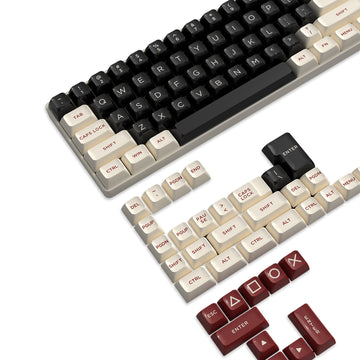
Our ATTACK SHARK X87 ULTRA product record is a useful example of this kind of qualifier: it lists a 10,000mAh battery good for up to 5,000 hours of runtime with the LEDs off, separately from its 22 RGB backlight effects and tri-mode 2.4GHz, Bluetooth, and wired connectivity. That 5,000-hour figure describes the LEDs-off condition specifically. It isn't an estimate for RGB-on use, and it shouldn't be compared directly against a personal test run under different lighting, connection, or workload conditions. Treat any advertised runtime the same way, as a reference point tied to its own stated conditions rather than a promise that transfers to a different setup.
FAQs
Why can two equal-length RGB tests show different battery loss?
Equal test duration doesn't guarantee equal conditions. Differences in starting charge, active typing or tracking workload, wireless connection mode, or auto-sleep activation between runs can shift battery consumption. Measuring over short windows also magnifies percentage rounding. To get an accurate comparison, test each lighting setting under the same baseline conditions and average two or three runs rather than relying on a single test.
Does cutting RGB brightness in half double wireless battery runtime?
Reducing brightness by 50 percent does not double battery runtime. While LED forward current or PWM duty cycles drop with lower brightness settings, driver efficiency losses and baseline power consumption from the wireless radio, microcontroller, and sensor remain constant. Active lighting power changes, but total peripheral runtime does not scale linearly with brightness sliders.
Will turning off RGB improve battery life during idle standby?
Turning off RGB reduces active power draw, but standby power consumption depends mainly on your peripheral's auto-sleep timer and firmware sleep states. If a device stays awake without typing or mouse movement, disabled LEDs save power compared to active illumination, but enabling a prompt auto-sleep timeout preserves battery life far more effectively during long idle periods.