


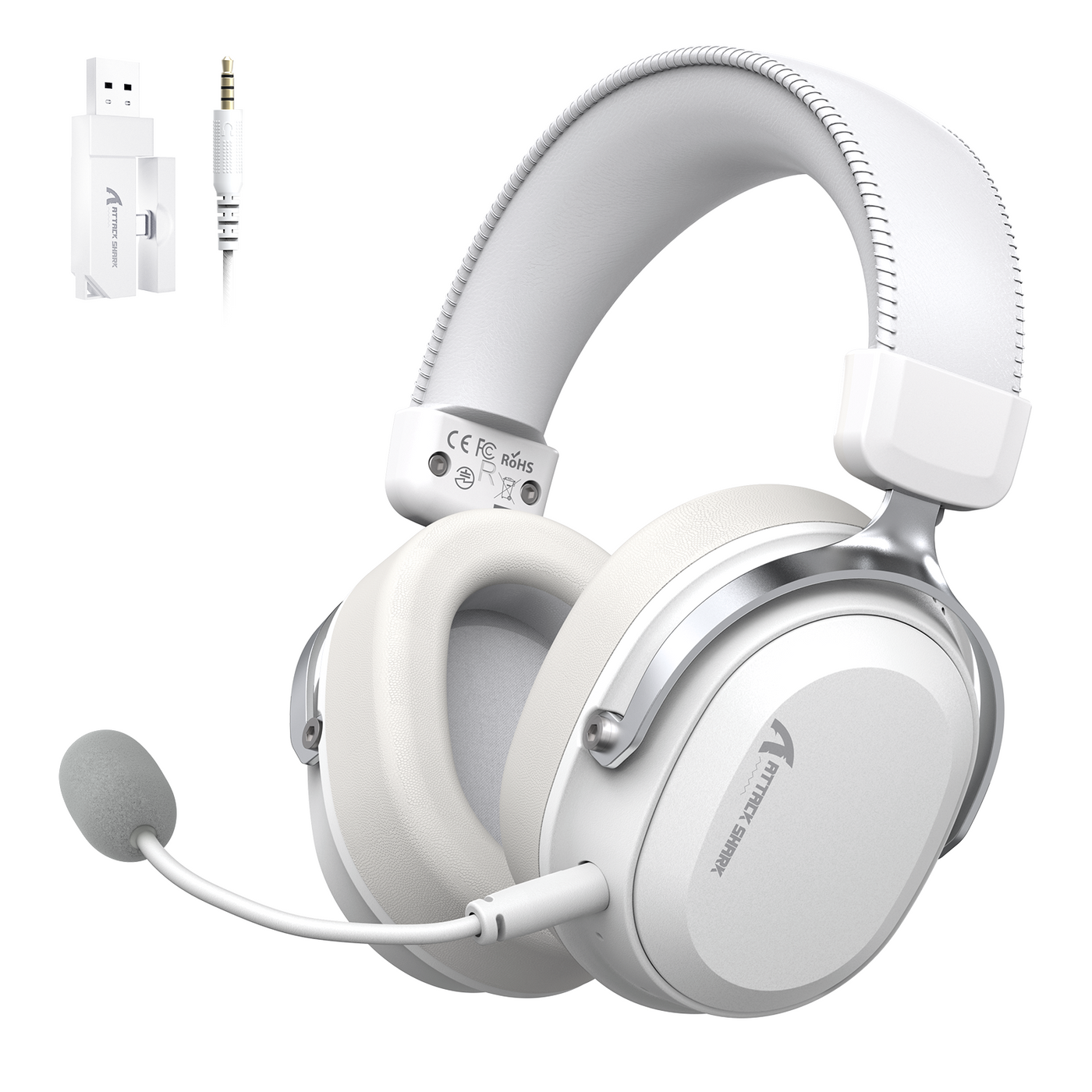
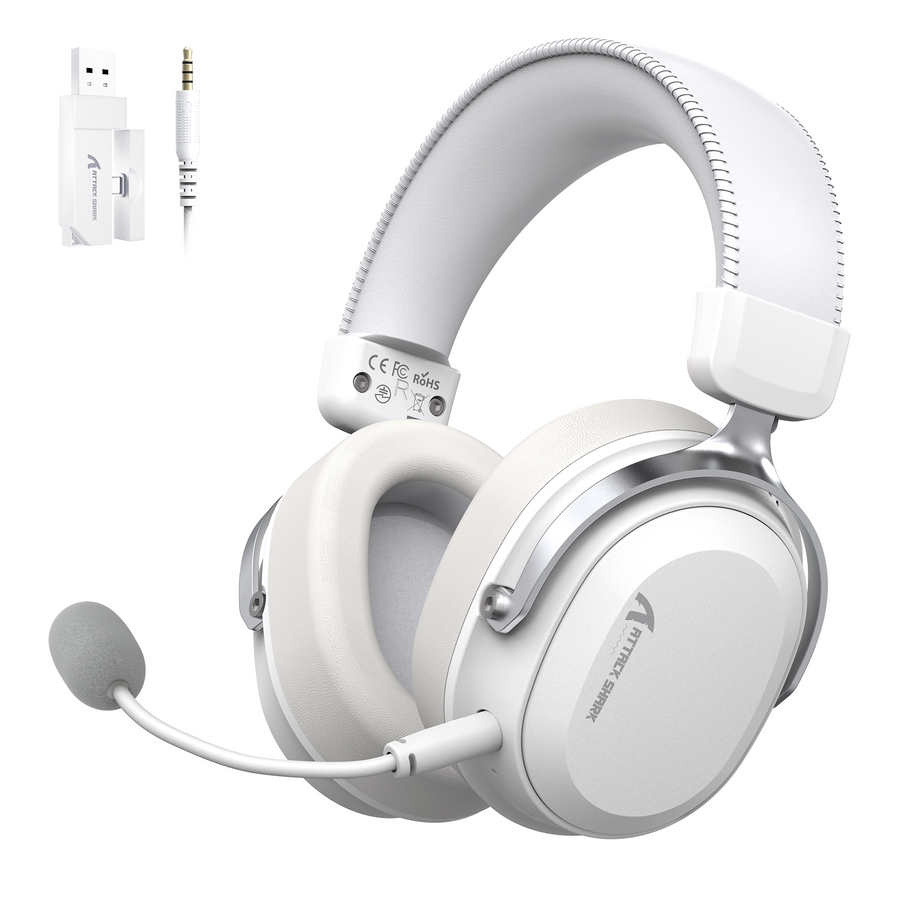
Choose a gaming headset microphone by matching the design to how you actually talk: a close boom for stable pickup, flip-up for fast physical muting, or detachable when the headset doubles as everyday headphones. Use the candidate-specific test below to confirm the choice before keeping it. Feature lists and marketing labels do not prove that a microphone sounds clear where you sit.

Choose the Microphone Workflow Before the Headset
Start with the job the microphone needs to do, not the feature list on the box. If clear speech during team chat is your main goal, prioritize a microphone that can sit close to the corner of your mouth and hold that position while you move.
If you frequently need to go silent mid-match without fumbling for a software toggle, put fast physical muting first. A flip-up design that lets you raise the boom is worth prioritizing here, though you should still confirm how that specific headset handles muting.
If the same headset needs to double as plain headphones for music or travel, detachable design solves that problem directly. It does not, by itself, make the microphone sound better.
Treat the form factor as a workflow decision. Once you know which job matters most, use the comparison below to see which design fits that job.
Boom, Flip-Up, and Detachable Microphones Compared
Boom, flip-up, and detachable microphones differ mainly in how they mute and how they attach, not in guaranteed sound quality. Use the table to match a design to your priority, then verify the specific model before you commit to it for chat or streaming.
| Microphone design | Practical advantage | Limitation or check | Choice implication |
|---|---|---|---|
| Boom (fixed) | Places the capsule close to the mouth for stable pickup | Mute behavior varies by model; look for a dedicated button or software control | Choose it when consistent placement matters most for team chat |
| Flip-up | Can move the attached mic out of the way quickly | Automatic mute is common, not guaranteed; confirm the indicator before relying on it | Choose it when frequent quick mute changes matter during matches or calls |
| Detachable | Removes for headphone-only use while keeping close placement when attached | Removal does not by itself improve clarity; check for a separate mute control | Choose it when the headset must also serve as everyday headphones |
A generic boom does not imply a particular mute mechanism. For a flip-up design, confirm automatic mute with a recording or call before relying on it.
Match the Setup to Discord, Streaming, or a Shared Room
For team chat, prioritize intelligible speech, stable placement, and a mute method you can verify. For streaming, add consistent distance and listen-back; in a shared room, give extra attention to fan, keyboard, and nearby conversation spill.
Discord and Team Chat
For Discord and general team chat, prioritize clear speech at a normal speaking volume and a mute control you can verify quickly. Select the correct input device in your chat app before judging anything else, since a wrong input can make a perfectly good microphone sound broken.
Streaming from a Home Setup
Streaming asks more of your microphone because your audience hears exactly what your chat app receives. Keep the microphone at a repeatable distance from your mouth every session, and record a short clip to listen back before you go live. Headset microphones are generally designed to pick up one nearby speaker, so do not assume a headset label proves streaming-grade clarity; judge it against your own in-room sample.
Gaming in a Shared Room
For a shared bedroom, office, or living space, prioritize a microphone setup that remains acceptable with a fan, keyboard, or nearby conversation operating as usual. Distance and angle can change how the same microphone behaves.
Catalog Options That Solve Different Microphone Tasks
Our catalog options map to different microphone workflows. Use the table to choose a starting point for team chat, streaming, or lightweight dual-mode use.
| Product and microphone fact | Connection choice | Best starting scenario | Test focus |
|---|---|---|---|
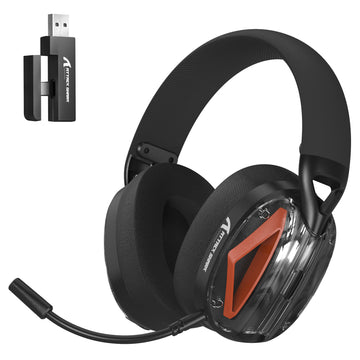
| G800 detachable mic | 2.4GHz, Bluetooth, or 3.5mm wired | Team chat when you want microphone removal and multiple connection options | Placement, mute control, and input selection in your chat app |
| L30 PRO streaming mic | 2.4GHz, Bluetooth, or 3.5mm AUX | Streaming when you want a detachable mic and multiple connection options | A listen-back recording in your streaming software before going live |
| G500 dual-mode headset | Bluetooth 5.1 or 3.5mm wired | Lightweight, dual-mode use for gamers who move between devices | Background noise in your specific room; do not assume the omnidirectional microphone will reject nearby sound |
If team chat with the option to go headphone-only fits your workflow, start with the G800. If you stream and want a detachable mic across wired or wireless setups, start with the L30 PRO. If you want a light, dual-mode headset and share your space with others, start with the G500 and put extra weight on the shared-room test because its omnidirectional microphone makes that check especially important.
Set a Pass Condition Before You Test
A headset passes when the correct app receives its microphone, your speech is understandable at your normal speaking position, expected room noise is acceptable against the room's normal background, and the mute control does what you expect.
If those conditions still fail after the connection and input are confirmed, use the seller's return or support process instead of assuming a software fix will solve it.
Run a Before-Keeping Microphone Test
Run this sequence every time you set up a new gaming headset microphone, whether it is for Discord, streaming, or a shared room.
- Connect the headset. Plug in the USB receiver, pair Bluetooth, or connect the 3.5mm cable, and confirm the connection is secure before moving on.
- Select the intended input and output in your chat or streaming app, and confirm the app has microphone permission.
- Confirm the input mode and mute state. Check that the microphone is unmuted and the correct device is active, using your app's device list.
- Place the microphone consistently near the corner of your mouth, matching the position you will actually use during play.
- Record a short sample or run a mic test. Use Discord's input selection and Mic Test guidance when Discord is your intended app.
- Listen back with your normal room noise present, checking for intelligibility, keyboard or fan spill, distortion, and volume changes.
- Test the mute control by toggling it and confirming the result in the same recording or a live call, then keep, adjust, or return the headset based on the pass condition you set earlier.
Start with the catalog option that matches your workflow, then run this test on that candidate before keeping it.
Choose a fixed boom when stable voice pickup is the priority, flip-up when quick physical muting matters most, or detachable when you also need headphone-only use. We recommend comparing our catalog options against the workflow that passed your test before you keep a headset.
FAQs
What Makes a Gaming Headset Microphone Good for Voice Chat?
A good gaming headset microphone stays close and stable at your normal speaking position, produces understandable speech at a normal volume, offers a mute control you can verify, and keeps background noise at an acceptable level in your own room. No single spec confirms this without a real test.
Is a Detachable Microphone Better Than a Flip-Up One?
Not automatically. Detachable microphones mainly add the option to use the headset as plain headphones. Flip-up microphones mainly add a fast physical mute gesture, which is often, but not always, paired with automatic muting. Choose based on which workflow you actually need, then confirm the specific model's behavior.
How Do I Test a Gaming Headset Microphone Before Keeping It?
Keep the headset only when the intended app receives its microphone, speech is understandable at your normal position, room spill is acceptable, and mute behaves as expected. If a confirmed connection and input still fail one of those checks, adjust the setup or use the seller's return or support process.
Will a Gaming Headset Microphone Pick Up Background Noise in a Shared Room?
It can. Most gaming headset microphones are designed to pick up one nearby speaker rather than filter out a busy room, so fan noise, keyboard clatter, or nearby conversation may still come through. Test your specific room before assuming a microphone label handles this for you.
What Should I Check About Connectivity Before Judging Microphone Quality?
Confirm the physical connection, whether USB, Bluetooth, or 3.5mm, is secure, and confirm your chat or streaming app has selected the correct input device with the right permissions. A wrong input or blocked permission can make a working microphone sound faulty.