


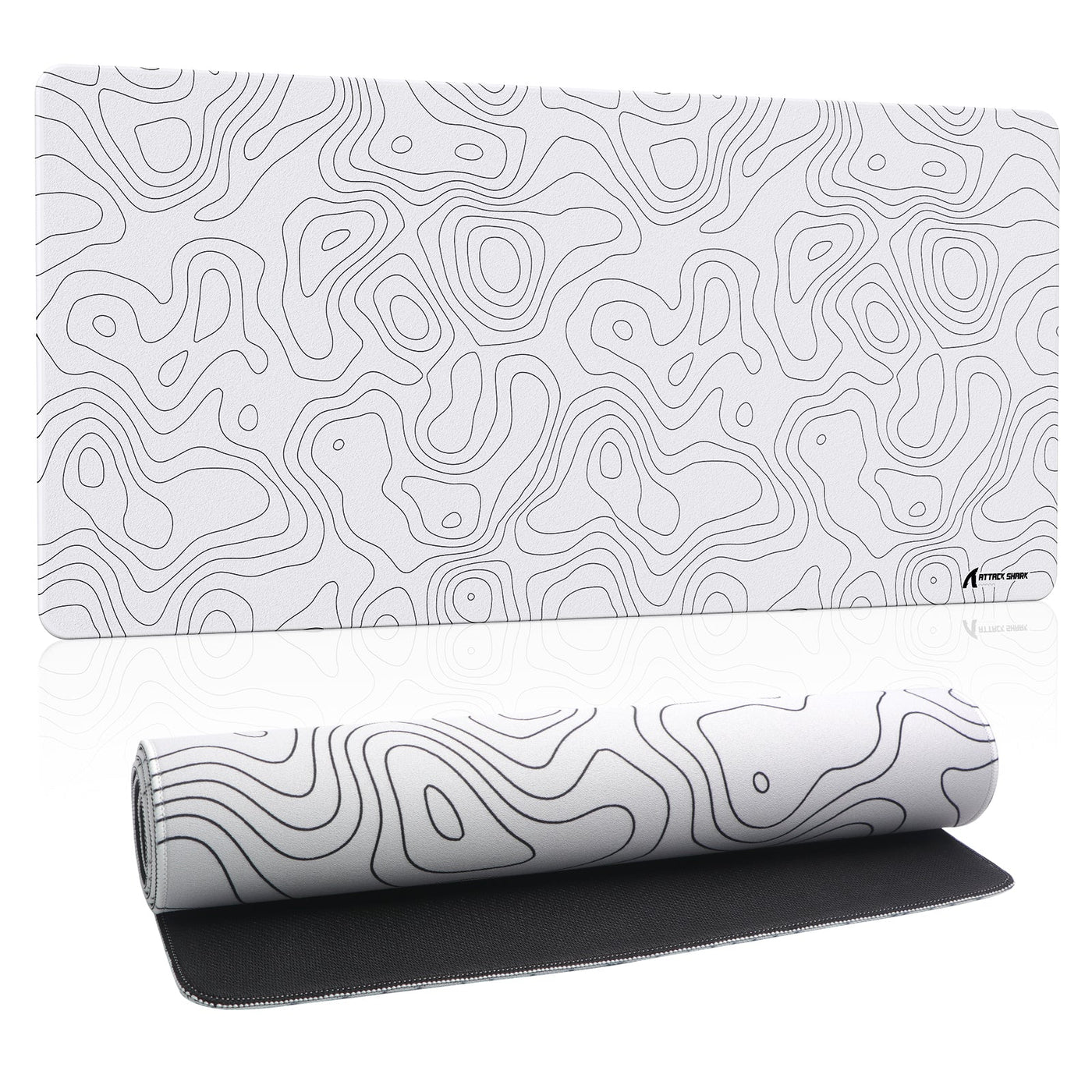
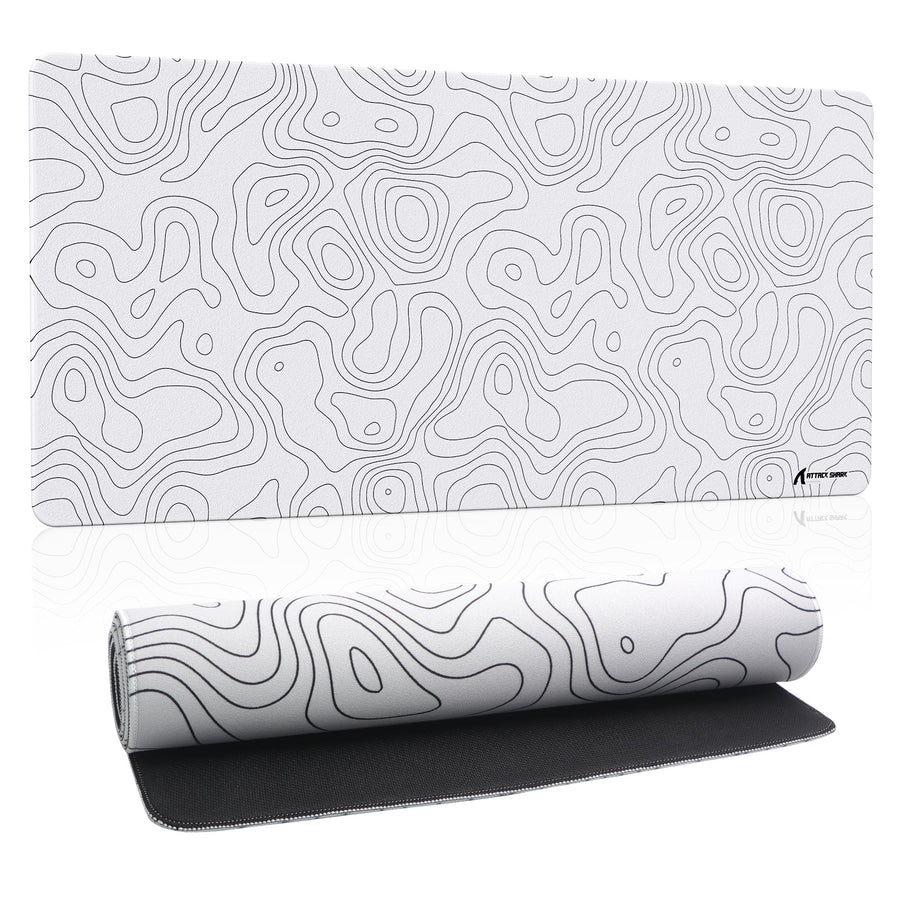
Choosing a gaming mousepad comes down to one question: how do you want your mouse to move and stop? A smoother, low-friction surface makes movement easier and favors speed. A more textured cloth surface adds resistance, giving you more control as you stop on a target. A hybrid surface sits between the two when you don't want either extreme. This guide covers texture, humidity, mouse-feet compatibility, and sizing. It also includes a short worksheet to help you narrow down the right surface and size before you shop.

Speed, control, or hybrid: match the surface to your aim
Start with the main trade-off: too much resistance during movement or too little feedback when you stop. The table below shows what to expect from each surface type and where it fits best.
| Surface choice | Movement and stopping tendency | Best-fit FPS scenario |
|---|---|---|
| Speed (smoother surface) | Less resistance during movement; stopping relies more on your own deceleration | Broad flick shots and fast repositioning where reduced friction feels easier to push |
| Control (textured cloth) | More resistance and more tactile feedback when you slow down | Precision tracking and players who tend to overshoot targets |
| Hybrid | Balanced friction between the two extremes | Players unsure which extreme fits or who switch between playstyles |
Choose speed when movement resistance is the problem
If your aim feels stiff or your arm works too hard during wide swipes, try a smoother pad first. Lower surface friction makes broad or rapid movements feel easier because the mouse glides with less drag. This is a general tendency, not a guarantee of faster aim: your sensor, mouse weight, and grip style still affect the result. Speed-oriented surfaces often suit players who make large flick shots or quick repositioning moves and prioritize reaching the target quickly over pinpoint stopping.
Choose control when stopping feedback matters more
If you regularly overshoot targets or want a clearer cue as you stop, a textured cloth surface is the better starting point. Its texture adds resistance, giving your hand a physical signal as the mouse slows down. That does not guarantee better accuracy for every player. It provides a more deliberate stopping feel that many precision-focused players prefer. A control-oriented pad is also a sensible choice if your previous low-friction surface felt too twitchy.
Choose hybrid when neither extreme fits
Hybrid surfaces aim for a middle ground: easier initial movement than a pure control pad, with more stopping feedback than a pure speed pad. Treat hybrid as a preference category, not a standardized performance rating. Manufacturers describe balanced friction differently depending on the construction and coating. If you have tried both extremes and neither felt right, a hybrid surface is worth testing.
Check stopping feel, texture, humidity, and feet before you commit
Check texture and stopping feel with your actual mouse setup during a full session before you commit. Humidity, moisture, dust, grime, and worn feet can change how predictable the surface feels.
Texture changes the stopping cue
Texture can change the stopping cue you feel, but the result depends on the complete mouse-and-feet setup. Compare stopping feedback on your actual setup during a full session instead of inferring it from weave alone.
Treat humidity and grime as real-session checks
A pad that feels great on day one may feel different after a full, sweaty session in a warm room. Use these checks instead of relying on your first impression:
- Room and hand moisture: Test the surface after your hands have warmed up and the room has reached its usual temperature, not right after unboxing.
- Post-session feel: Compare glide and stopping feedback at the start and end of a one-hour session to see whether moisture or skin oils affect the surface.
- Care and drying requirements: Follow the pad's cleaning and drying instructions before deciding the surface is unsuitable. Dust and oil buildup can feel like a texture problem.
Humidity and sweat can change how a fabric surface feels over time. The effect depends on the material and construction, so don't assume every pad reacts the same way.
Recheck the mouse and feet as a paired setup
Your mouse and feet may feel different after a surface change, so treat the mouse, feet, and pad as one setup. If you're switching to a hard, glass, carbon-fiber, or other specialty surface, check the mouse maker's compatibility or surface-tuning guidance first. After changing the pad or feet, test tracking and stopping directly instead of assuming the new setup will feel like the old one.
Choose mousepad size from sensitivity and usable desk space
Choose a size based on how far your mouse actually travels, not just how much of the desk a pad can cover. Start with your sensitivity, then measure the usable mouse lane.
Start with your sensitivity and movement range
Low sensitivity and arm-based aiming usually need more usable travel because you use a wider arc for the same amount of screen movement. Higher sensitivity can reduce the required lane, but your wrist or arm movement still makes the final difference. Two players with the same sensitivity number may need different sizes if one aims with the wrist and the other swings from the elbow. Use your actual movement—not a general sensitivity chart—as the starting point.
Measure the mouse lane after the desk is set up
Measure the usable space after putting your keyboard and other fixed items in place:
- Place your keyboard, wrist rest, and other permanent desk items where you actually use them.
- Measure the remaining width and depth available for the mouse on your dominant side.
- Check that a full swipe and a repositioning lift fit without hitting the keyboard or desk edge.
This usable lane, not the total desk width, should drive your size choice.
Use the low-sensitivity scenario as a fit test
If you aim with low sensitivity and your measured lane and desk depth support an extended or XL footprint, the larger format gives you room to move without repositioning mid-fight. If the lane is tight, don't force an oversized pad onto the desk. Choose the largest conventional footprint that leaves the keyboard and other items undisturbed while preserving your full swipe distance. For low-sensitivity setups, the right size is the one that matches your measured lane. There is no single minimum dimension for every desk.
Use this FPS surface-selection worksheet to make a shortlist
This worksheet turns the guidance above into one surface choice and a size shortlist. Complete the five steps in order and record your answers.
Record the movement problem
- Movement and stopping preference: Mark whether resistance during movement, stopping feedback, or a balance of both is your current problem.
Use your current pad as the reference for this step, not a universal benchmark. Compare your own experience rather than an ideal standard.
Record the setup and desk constraints
- Mouse and feet: Note your mouse model, feet material, and how worn the feet are.
- Room and care conditions: Note the typical room temperature, humidity, and how often you clean the surface.
- Usable lane: Record the width and depth measured with your keyboard in place, including clearance for a full swipe and repositioning.
Read the surface-and-size result
- Result mapping: Combine your answers into one surface category and one or two size candidates.
- If movement resistance is the problem and your lane is generous, shortlist a speed-leaning surface in a conventional or extended size.
- If stopping feedback is the problem, shortlist a control-leaning surface sized to your measured lane.
- If you want a middle ground or have limited or unusual space, shortlist a hybrid or rigid surface sized to the footprint your desk supports.
Keep one or two candidates from this result before comparing specific pads.
Map the worksheet result to supported mousepad examples
Once the worksheet points to a surface category and size range, compare real footprints with your measured lane. The three product examples below cover compact control-oriented cloth, extended control-oriented cloth, and rigid carbon fiber. If your result is speed, these examples are not a direct speed match; continue filtering by a speed-oriented surface and the footprint your desk supports.
| Category example | Surface construction | Footprint (W x D) | Manufacturer-described orientation |
|---|---|---|---|
| Compact control pad | Textured non-woven cloth | 410 x 310 mm (about 16.1 x 12.2 in) | Control-leaning, slightly resistant glide |
| Extended control pad | Textured non-woven cloth | 900 x 400 mm (about 35.4 x 15.7 in) | Control-leaning, slightly resistant glide |
| Rigid carbon-fiber pad | Genuine carbon fiber | 360 x 280 mm or 490 x 490 mm (about 14.2 x 11 in or 19.3 x 19.3 in) | Manufacturer-described balanced friction |
Compact control shortlist
If your measured lane is compact and the worksheet points to control, look for a smaller control-oriented cloth pad that won't crowd the rest of your desk. Our CM02SE control pad fits this profile as a compact option in this construction.
Extended control shortlist
If the worksheet points to control but your lane needs broad travel, a larger footprint in the same cloth construction preserves that stopping feedback across a wider swipe. Confirm that your desk supports the extra length before choosing this size. An extended pad only helps if it fits without crowding your keyboard. Our CM02PRO extended pad is built for this larger control-oriented footprint.
Rigid balanced-friction alternative
If the worksheet points to hybrid or you'd rather avoid cloth, compare a rigid, non-cloth construction. Our CM04 carbon-fiber pad is made from genuine carbon fiber and has manufacturer-described balanced friction for glide and stopping. It comes in two verified footprints, so you can match it to your measured lane instead of guessing. Before committing, test your installed feet on the surface.
Use the worksheet result as the final filter: choose speed when movement resistance is the problem, control when stopping feedback matters, and hybrid when you want a middle ground. Match that choice to your measured mouse lane, then select the supported example whose construction and footprint fit your desk and mouse setup. CM02SE suits compact control-oriented cloth, CM02PRO suits extended control-oriented cloth when space allows, and CM04 is a rigid carbon-fiber alternative with manufacturer-described balanced friction.
When you're ready to compare current sizes and constructions side by side, shop our mousepad collection to see the full range.
FAQs
How should I clean a mousepad?
Start with the care instructions for your specific pad because cloth and rigid surfaces require different cleaning methods. For most cloth surfaces, gently wiping with mild soap and water and letting the pad air-dry fully before use works well unless the maker says otherwise. Don't automatically use a cloth-cleaning method on a rigid or carbon-fiber surface; check its specific guidance first. If your pad has stitched edges, our stitched-edge cleaning guide covers a more detailed edge-care routine.
When should I replace a mousepad?
Look for uneven glide, contamination that won't come out with cleaning, curled corners, or frayed edges that interfere with movement. These are observable signs, not a fixed replacement schedule. A pad that still tracks consistently and lies flat can remain usable well beyond any general age guideline.
How should I care for a mousepad in a humid room?
Test the surface after a full session in your actual room instead of assuming how it will change. Keep it clean and dry, and follow the maker's drying guidance if it gets damp. Materials react differently to humidity, so a change you notice on one pad won't necessarily apply to another construction.
Do I need to adjust after changing mousepad surfaces?
Yes. Retest your tracking and stopping feel after the change. Give yourself a short adjustment period to recalibrate your stopping habits, but you don't need to wait for a fixed break-in time before judging the fit.