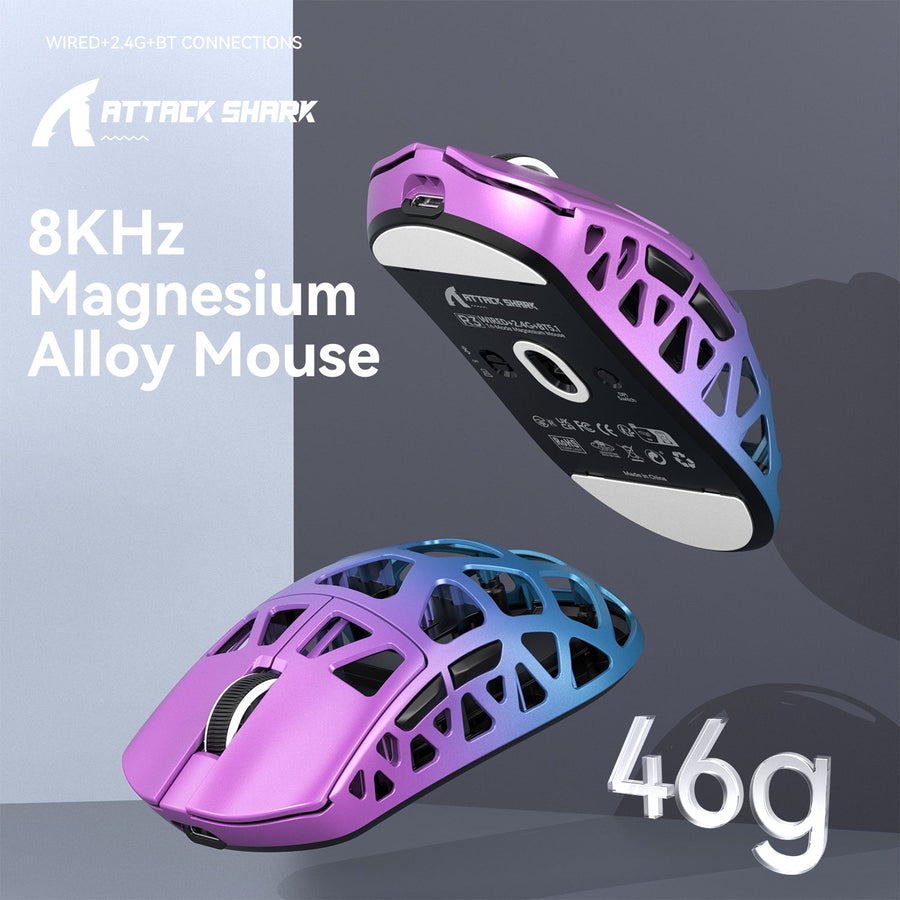



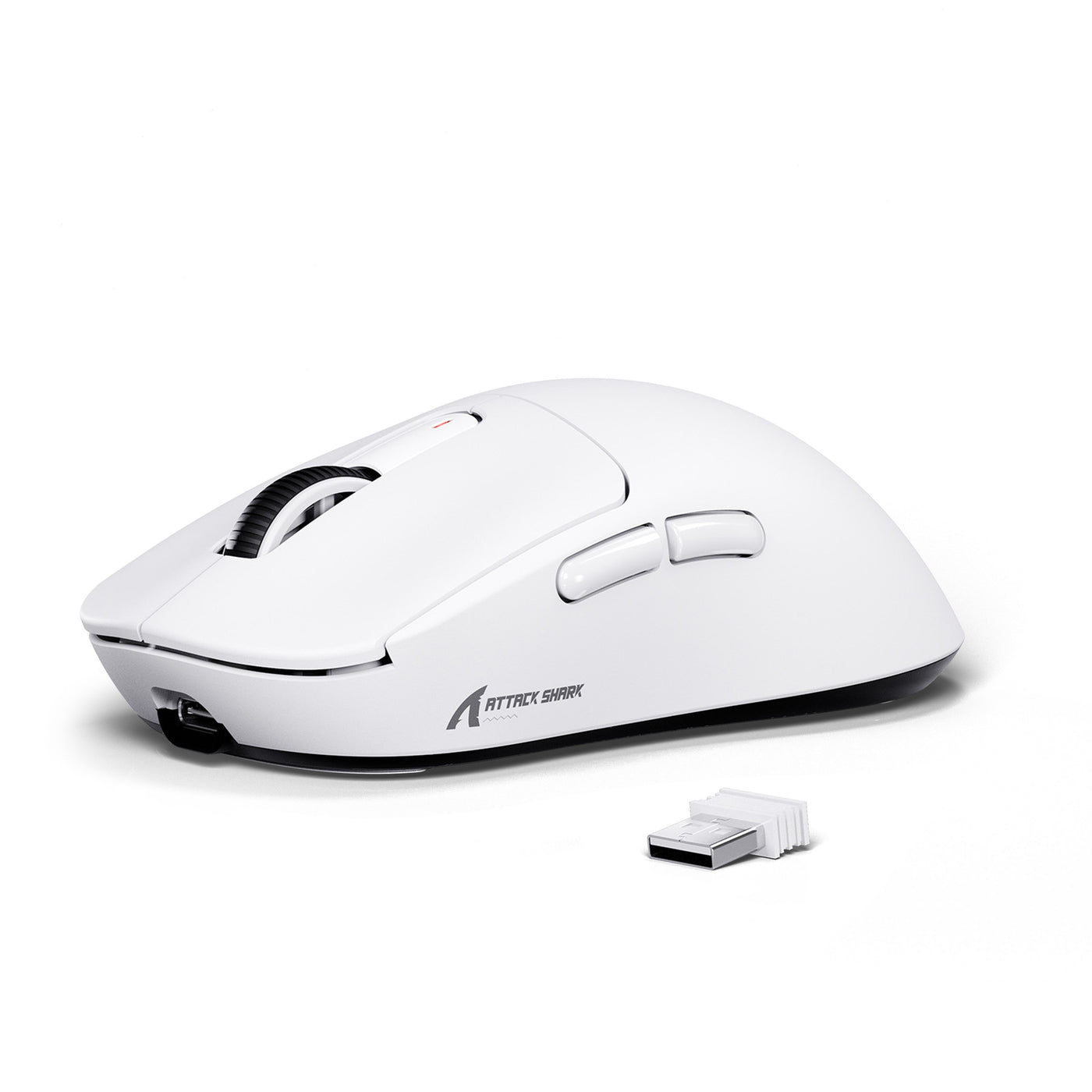
Gaming mouse double clicking usually means one press is registering as two. The fastest way to narrow it down is to test settings, firmware, and connection first, then treat repeated behavior across computers or modes as a hardware warning sign. If you own an ATTACK SHARK X3 or a similar budget mouse, that order saves time and helps you decide whether the fix is software-side or a return case.

What Double Clicking Looks Like
A double-click problem is not just a fast clicking style. It is a single press that gets read twice. In games, that can fire a weapon when you meant to tap once, break drag-and-drop, or open items twice in File Explorer. In everyday use, the same symptom can make folder selection and text highlighting feel unreliable.
That symptom alone does not prove a bad switch. A setting change, a driver issue, a flaky wireless link, or worn hardware can all look similar at first. The useful question is not "Is the mouse defective?" but "What changed the click signal before it reached the PC?" Computer Hope's debounce definition is a good plain-English starting point: a click can be read as extra transitions when the switch signal is noisy.

For most readers, the decision layer is simple. If the problem started after a software change, start there. If it appears across apps, PCs, and connection modes, move hardware wear higher on the list.
Why Gaming Mice Double Click
Settings and Debounce Timing
Debounce is the short delay that helps ignore extra switch chatter after a click. In mouse software, a lower debounce setting can make clicks feel more responsive, but it can also let a noisy switch show its bad behavior. That is why debounce matters most when the problem shows up suddenly after a profile change or a software update. MouseTest's debounce guide covers the trade-off well: a little more delay can make a click signal more stable, but it is not a cure for every double-click case.
Firmware and Driver Glitches
Sometimes the mouse is not failing at the switch at all. Firmware, drivers, and profile data can change how the click is reported to the computer. If the utility is out of date, the install is partial, or the saved profile is corrupted, the mouse may behave differently from one PC to another. That is why a software branch is worth checking before you assume the button is worn out.
For Attack Shark X3 users, the product-specific software path can matter because community reporting points to a debounce or key-response adjustment in the X3 driver branch. Treat that as a model-specific check, not a universal fix for every gaming mouse, and verify the current driver before you rely on it.
Switch Wear and Button Bounce
Mechanical switches can produce extra transitions during the few milliseconds it takes to open or close, and that bounce gets more noticeable as the switch ages. Analog Devices' switch-bounce overview is the right kind of technical background here: the problem is physical, not cosmetic. Heavy clicking, long use, and repeated rapid taps can make the symptom show up more often.
That does not mean every gaming mouse double clicking report is a dead switch. It means a worn switch is more likely when the symptom is repeatable and survives normal troubleshooting. If debounce helps a little but never fully fixes the issue, the mouse may be masking a hardware problem rather than solving it.
Connection and Power Interference
Wireless interference, a weak battery, or a damaged cable can make click behavior seem inconsistent. This is less common than switch wear, but it is easy to rule out. If the mouse only misbehaves on one USB port, with one dongle position, or on low power, the "double click" may be a connection problem instead of a button problem.
If you are using a tri-mode mouse, this is the point where changing modes matters. A clean test in wired mode or on a different receiver path can tell you whether the problem follows the hardware or the connection path. That distinction matters more than the brand name on the shell.
Quick Fixes to Try First
- Test the mouse in another app and on another PC. That is the fastest way to separate a software or profile issue from a hardware problem. ATTACK SHARK's support guidance recommends this kind of isolation test before you go further.
- Reset or reselect the mouse profile. A bad profile can keep bad settings in place even when the mouse itself is fine.
- Try another USB port, receiver position, or cable path. A short move to a different port can rule out a flaky connection or interference.
- Raise debounce slightly if the software allows it. This is a test, not a cure-all, but it can stabilize a switch that is only mildly noisy.
- Switch to another connection mode if the mouse supports it. If the problem disappears in one mode and returns in another, that narrows the cause quickly.
Try the steps in that order and change only one thing at a time. If the symptom improves on one PC but not another, you are probably dealing with software or system configuration. If it stays the same everywhere, the odds shift toward switch wear or another hardware fault.
When Firmware or Settings Are the Fix
| Fix Type | Best Used When | What It Tells You | Caution |
|---|---|---|---|
| Debounce adjustment | The mouse only started double clicking after a software or driver change | Higher debounce can filter extra switch chatter and tell you whether the button is noisy rather than dead | It may make clicks feel a little less sharp, so treat it as a diagnostic step first |
| Driver reinstall or update | The mouse behaves differently on one PC or after an update | A clean driver install can remove a broken profile or utility conflict | Save custom settings first if the software lets you export them |
| Firmware update | The manufacturer provides an official update for your exact model | A firmware fix can change how the mouse reports clicks | Only use the official instructions for your exact version |
| Profile reset | One game, one profile, or one saved mode is acting up | A reset shows whether the issue lives in the stored configuration | You may lose custom bindings and lighting settings |
| Cross-PC test | You need the clearest split between software and hardware | If the problem follows the mouse, software is less likely to be the main cause | This is a test, not a repair, but it is the best branch point |
That table is the quickest way to judge what each fix can actually prove. Debounce can help a noisy switch, but it cannot rebuild a worn one. A reinstall can clean up bad software, but it will not rescue failing contacts. If you want the most useful single check, start with another-computer testing, then use debounce changes only if the software path is still plausible.
How to Tell Hardware Wear From a Fixable Glitch
Repeatable Test Patterns
Hardware wear becomes more likely when the same behavior shows up in more than one place. If the mouse double clicks in a browser, in a game, and in a file manager, the signal is more suspicious than a one-off glitch. Try the click on both buttons, at normal speed and at a slower pace, and note whether the issue is consistent or random.
Click Behavior in Different Apps
Different apps can make the same mouse problem look different. A game may expose misfires during fast taps, while File Explorer may show unwanted double opens or weird drag behavior. If the symptom only appears in one app, check keybinds, macros, or app-specific settings before blaming the switch. If it appears everywhere, the hardware case gets stronger.
Drag, Hold, and Rapid-Tap Checks
Failed drag-and-drop is one of the clearest signs of a bad click signal. If you hold the button down and the drag drops early, the switch may be bouncing or losing contact. Rapid tapping can also expose bounce, but a clean rapid-tap result does not fully rule it out. Use the result as evidence, not as a final verdict.
The best practical rule is this: when the mouse acts up across apps, PCs, and connection modes, stop treating it as a simple software annoyance. That pattern is much more consistent with switch wear.
When to Return, Replace, or Contact Support
- If the issue still happens after a settings change, a profile reset, and a different USB port or mode, it is no longer just a quick-fix problem.
- If the same click error appears on another computer, the mouse itself is the likely common factor.
- If cleaning and debounce changes only reduce the problem a little, the switch may be wearing out rather than failing from one simple setting.
- If the symptom is getting worse, do not spend another week chasing minor tweaks.
- If you are still inside the retailer return window, act sooner rather than later so you do not lose that option.
- If support is the fastest path to a replacement or warranty review, gather your test results first and contact them with the exact pattern you saw.
That is the point where more troubleshooting usually stops paying off. A mouse that still double clicks on another PC, in another mode, or after basic cleanup is giving you a hardware signal, not a mystery setting. If you are checking an ATTACK SHARK X3 or a similar budget mouse, use the test results to decide whether to request support or move to a replacement.
Final Takeaway
Gaming mouse double clicking is worth troubleshooting in order, not by guesswork. Start with another-PC testing, then check profiles, ports, debounce, and connection mode. If the problem follows the mouse across setups, treat it as a hardware wear signal and move to support or a return. That saves time and gives you a cleaner case if you need help. If you are still inside the return window, test it once more on a second PC and then contact support with your results.
FAQs
Why Does My Gaming Mouse Double Click?
Usually it is one of four things: an overly sensitive debounce setting, a driver or firmware issue, a connection problem, or switch wear. The fastest way to narrow it down is to compare behavior on another PC and in another mode. If the symptom follows the mouse everywhere, hardware becomes the stronger guess.
Can Debounce Settings Stop Double Clicking?
Sometimes they can reduce it, especially if the switch is only slightly noisy. The useful check is whether raising debounce makes the problem disappear or only less frequent. If the symptom still comes back across devices, debounce is acting like a bandage, not a fix.
How Do I Test Whether It Is a Hardware Problem?
Test the mouse on another computer, then compare at least two apps and one different connection mode. If the same double-click behavior repeats in each case, the mouse is much more likely to be the issue. If it only happens on one PC or one profile, keep working the software path first.
What If the Mouse Only Double Clicks in One Game?
That can point to a game setting, macro, or keybind conflict instead of the mouse itself. Check the in-game binding and any overlay or remapping software before you replace hardware. If the issue never appears outside that game, the mouse is a weaker suspect.
Can I Keep Using a Mouse That Double Clicks?
Yes, but only as a short-term workaround while you test or wait for support. Unreliable clicks can break drag-and-drop, mess up menus, and ruin inputs in games that depend on precise taps. If the problem is worsening, avoid relying on it for important work or ranked play.